















Why Is My Streaming Video Quality So Bad? How to Fix Buffering and Blurry Movies
It can be incredibly frustrating to sit down for movie night, fire up your favorite streaming app, and be greeted by a blurry, pixelated mess. You pay for high-speed internet and premium 4K streaming subscriptions, so why does your picture look like it is from 2005, and why does it keep pausing to buffer?
When your streaming quality drops, it is rarely a permanent issue with your display. It almost always comes down to a bottleneck in how your network is delivering data to your device, or how your device is processing that data. Here is a clear, actionable guide to finding the bottleneck and restoring your crystal-clear picture.
What Causes Poor Streaming Video Quality?
Before changing settings on your router or television, it is important to understand what actually causes a video to degrade. Streaming platforms like Netflix, Hulu, and YouTube use "adaptive bitrate streaming." This means they constantly monitor your internet connection and device capabilities. If the platform detects a slowdown, it will automatically drop your video resolution (from 4K down to 1080p, 720p, or lower) to prevent the movie from completely stopping.
Slow Download Speeds and Network Congestion
To watch high-quality video, you need a strong, uninterrupted flow of data (download speed). If your internet package is too slow, or if multiple people in your house are downloading massive files or gaming online at the same time, your streaming device simply isn't receiving enough data to display a true 4K image.
Wi-Fi Interference

Even with lightning-fast internet, relying on a standard Wi-Fi connection can ruin your picture. Walls, distance from the router, and interference from other devices can cause momentary data drops. When your streaming app detects this instability, it panics and lowers your video quality to compensate.
Streaming App "Data Saver" Settings
Sometimes the problem isn't your network at all. Many streaming apps default to "Auto" or "Data Saver" modes to prevent users from accidentally burning through internet data caps. These settings deliberately throttle your video quality, capping you at standard definition.
Outdated Hardware and External Dongles
If you are using an older smart TV or a cheap, aging streaming stick, it may lack the processing power required to decode modern 4K HDR video efficiently. The device struggles to unpack the dense video files, resulting in dropped frames, muddy colors, and sluggish navigation.
How to Improve Streaming Quality on Your Screen
Now that you know why the resolution drops, here are the exact steps you can take to force your apps to deliver the premium picture you are paying for.
1. Secure a Faster, More Stable Connection
The quickest way to eliminate buffering and low resolution is to stabilize your network connection.
- Use an Ethernet Cable: Whenever possible, run an Ethernet cable directly from your router to your streaming device. This provides a dedicated, interference-free pipeline for heavy video data.
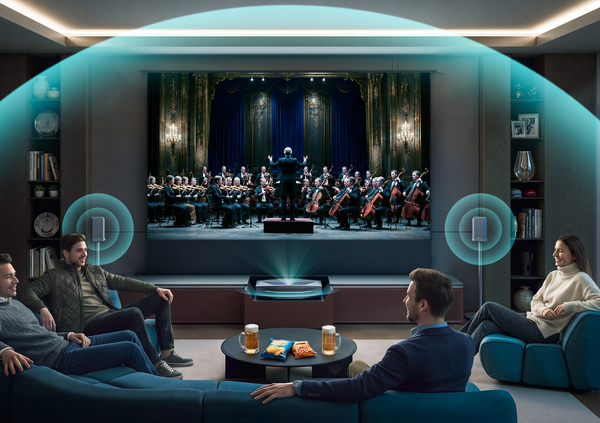
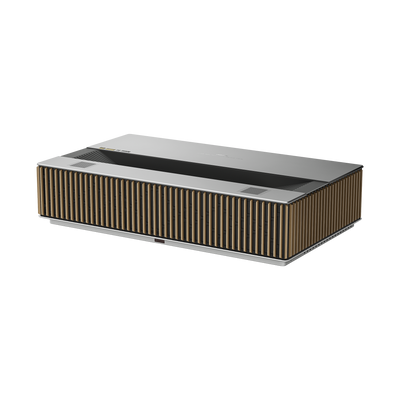
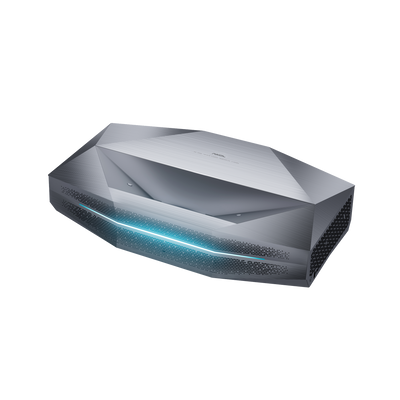
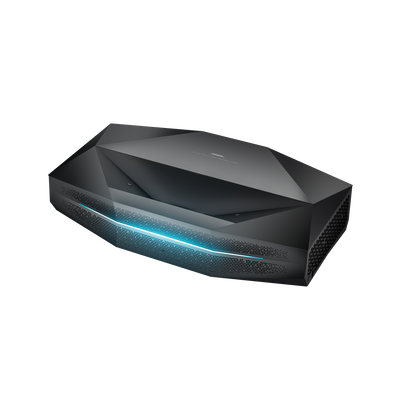
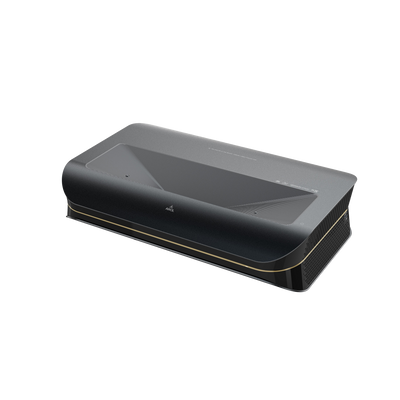
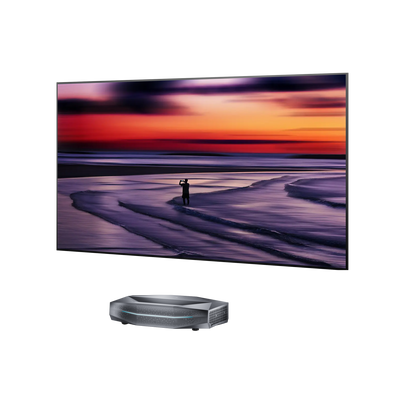
- Upgrade to Modern Wi-Fi: If running a cable isn't possible, ensure you connect your projector to Wi-Fi hardware that supports the latest wireless standards. For example, premium displays like the new AWOL Vision Aetherion are equipped with Wi-Fi 7 and a 1000Mbps Ethernet port. These modern standards are specifically integrated to handle massive 4K streams without a single hiccup, ensuring the projector always receives the data it needs for peak performance.
2. Force High-Quality Playback in Your Apps

Do not trust streaming apps to choose the best quality for you. You need to manually tell them to prioritize resolution.
- Netflix: If you want to reliably stream Netflix on your projector, log into your account on a web browser, go to Profile & Parental Controls > Playback Settings, and change Data Usage per Screen from "Auto" to High.
- Prime Video: In the app settings, navigate to Streaming Quality and select Best.
- YouTube: While watching a video, click the gear icon, select Quality, and choose Higher picture quality or manually select 2160p (4K) or 1080p.
3. Stream Directly from a Native OS
Relying on old, external streaming sticks or casting via Bluetooth can compress the video signal and introduce lag. For the purest picture quality, stream directly from the device's native operating system. Modern home theater hubs like the AWOL Vision Aetherion utilize a built-in Google TV OS, meaning the streaming apps run natively on the projector's flagship MT9655 processor. This eliminates the middleman, ensuring the video signal remains uncompressed and fully supports advanced formats like Dolby Vision and HDR 10+.
4. Leverage AI Upscaling for Older Content
Sometimes, the content itself is the problem. If you are streaming an older movie or a standard high-definition broadcast, it will naturally look soft or blurry when stretched across a massive 100-inch or 200-inch screen.
The Solution: Check your display settings for picture enhancement features to make your projector clearer. High-end projectors utilize features like AI Super Resolution and AI Intelligent Scene mapping. This technology actively analyzes lower-resolution streams frame-by-frame and uses artificial intelligence to fill in the missing pixels, effectively upscaling a standard HD stream to near-4K clarity.
Take Control of Your Streaming Experience

You do not have to settle for a pixelated, stuttering movie night. When your screen suddenly looks blurry, remember that it is almost always a temporary data bottleneck, not a permanent hardware failure.
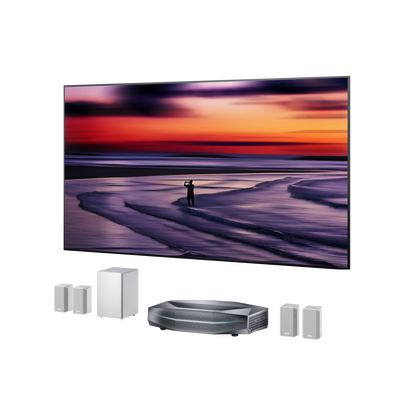
By taking a few minutes to hardwire your connection, manually adjust your streaming app preferences, and bypass outdated streaming sticks, you can instantly restore the crisp, vibrant picture you deserve. Once your network is fully optimized and delivering uncompressed data, you finally allow premium home theater hubs like the AWOL Vision Aetherion Projector Setup to do exactly what they were engineered to do: deliver a flawless, cinematic 4K experience right in your living room.
Check your router and app settings tonight, and get back to enjoying your favorite films the way the director intended.
FAQ on Streaming Video Quality
What internet speed do I need to stream in 4K?
For a smooth, buffer-free 4K vs UHD streaming experience, most platforms (including Netflix and Prime Video) recommend a consistent download speed of at least 25 Mbps per stream. If two people in your home are watching different 4K movies at the same time, you need a stable 50 Mbps minimum.
Why does my 4K TV look blurry on Netflix?
If your 4K display looks blurry, Netflix is likely downgrading your stream due to network instability, or you are not subscribed to the correct tier. Verify that your specific Netflix subscription plan actually includes 4K Ultra HD playback, as their standard plans max out at 1080p. Once verified, check your playback settings to ensure it is set to "High" data usage.
Does casting from my phone lower video quality?
Yes, it can. While it is easy to connect your phone to a projector for quick clips, "mirroring" your screen often compresses the image and limits framerates. For feature films, always use the dedicated app installed directly on your TV or projector rather than casting from a mobile device.
Be the First to Know
Subscribe for special deals, news, and important product information, and get your exclusive $100 discount.
Related Articles

7 Basement Home Theater Ideas with a Style of Their Own
Projector Screen Paint: Is It Worth Painting Your Wall?
A Projector in an Apartment: Make Room for the Screen, Not a Theater
Small Man Cave Ideas: 10 Activity-Based Setups for Limited Space
Frame TV Alternative: A Smarter Vision for the Living Room