















Dynamic Tone Mapping: Guide to Perfect HDR on Projectors
You bought a 4K HDR projector to get that immersive, cinema-quality experience at home. You fire up a movie, ready to be blown away, but instead, you find yourself squinting. Dark scenes are muddy and hard to see, or bright clouds are just big white blobs with no detail.
Frustrated, you dive into the settings menu and find something called Dynamic Tone Mapping. Some forums say turn it off for accuracy; others scream to turn it on for visibility. Who is right?
The truth is, most advice online is written for OLED TVs, not projectors.
This guide will explain exactly what Dynamic Tone Mapping (DTM) does, why it is the secret weapon for getting the most out of your Ultra Short Throw (UST) projector, and how to set it correctly for both movies and gaming.
What is Dynamic Tone Mapping? (Quick Answer)

Dynamic Tone Mapping (DTM) is a projector feature that continuously adjusts HDR brightness and contrast on a scene-by-scene or frame-by-frame basis. It acts as a real-time translator, ensuring you keep highlight details in bright scenes and shadow visibility in dark scenes—even when the original HDR10 content uses static metadata.
Why HDR Looks Dim on Projectors
Before we get to "Dynamic," we need to understand the basic problem.
HDR movies are often mastered on 600-, 1,000-, or 4,000-nit reference displays. Most consumer displays—especially projectors throwing a 100–150 inch image—can’t match those peaks. Because projectors rely on reflected light rather than direct emission (like a TV), the raw signal has to be compressed to fit what your projector can actually show.
Tone Mapping acts as the translator. It squishes that massive brightness range down to fit your specific hardware, preserving detail so that a bright explosion doesn't just look like a white featureless blob.
The Basics: Still foggy on the difference between old TV standards and the new ones? Read our guide on SDR vs. HDR.
Static vs. Dynamic Tone Mapping: The Difference
The real magic happens in how that translation occurs.
Static Tone Mapping (The Old Way)
HDR10 uses static metadata (including mastering display info and values like MaxCLL/MaxFALL) that applies across the whole program. Your projector chooses a single tone-mapping curve based on that one set of info.
- The Problem: This leads to compromises. If the projector optimizes for a bright beach scene, a dark cave scene later in the movie might look gray or flat because it's using the wrong "rules" for that moment.
Dynamic Tone Mapping (The New Way)
Dynamic Tone Mapping is display-side processing that continuously adjusts the tone-mapping curve (often scene-by-scene, sometimes frame-by-frame) to preserve detail as brightness changes.
- The Solution: It’s like having a professional colorist sitting inside your projector, adjusting the brightness and contrast dials instantly for every single moment. It maximizes the "pop" of bright scenes while protecting shadow detail in dark ones.
Dynamic Tone Mapping vs. HDR10+ vs. Dolby Vision
If you read home theater forums, you will often see purists argue that Dynamic Tone Mapping should be turned OFF because it alters the "director's original intent."
That advice is usually correct for high-end OLED TVs in dark rooms. It is usually wrong for projectors.
For projectors, Dynamic Tone Mapping isn't about altering intent; it's about preserving visibility. It ensures that the image has enough brightness and contrast to be enjoyable on a massive 150-inch screen, especially if you have some ambient light in the room.
Rule of Thumb:
- Standard HDR10: Leave Dynamic Tone Mapping ON. It is essential for getting the best performance out of a projector's brightness capabilities.
- Dolby Vision / HDR10+: If you’re watching Dolby Vision or HDR10+ content, your projector may switch to a dedicated HDR pipeline where manual tone-mapping controls become unavailable. The content provides its own dynamic metadata to guide the mapping, but the projector still performs tone mapping to fit its own capabilities.
DTM vs. HGiG for Gaming
Gaming is where things get complicated. You are often forced to choose between visual "pop," accuracy, and input lag.
Option 1: Dynamic Tone Mapping (DTM)
- Pros: Actively brightens shadows and highlights. Great for competitive shooters or playing in a room with some ambient light where you need to see enemies hiding in dark corners.
- Cons: DTM can add lag if it requires extra processing or if it pulls you out of the projector’s lowest-latency Game Mode. On many projectors, leaving Game Mode can add tens of milliseconds of delay.
Option 2: HGiG (HDR Gaming Interest Group)
- Pros: HGiG is a guideline mode where the display largely stops its own HDR tone mapping and relies on the console/game’s HDR calibration. That can improve consistency and often helps keep latency low, but the exact lag depends on the projector’s Game Mode implementation.
- Cons: On projectors, HGiG can sometimes look disappointingly dark if the game doesn't have good internal brightness sliders to compensate for the screen size.
The Best of Both Worlds: Dolby Vision Gaming

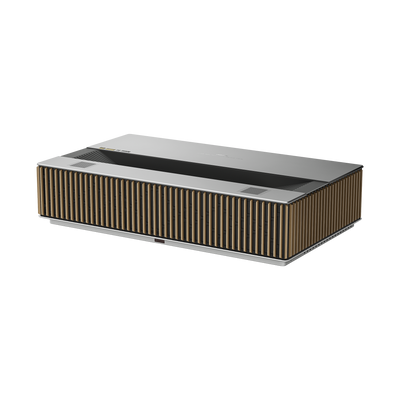
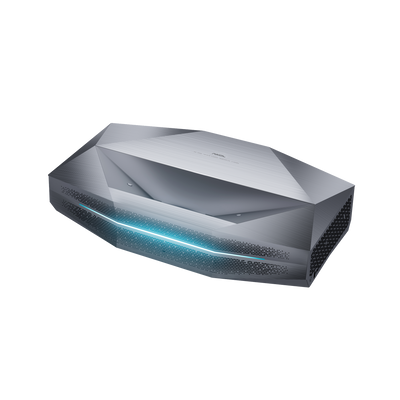
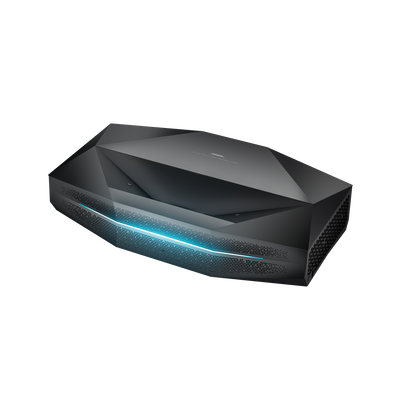
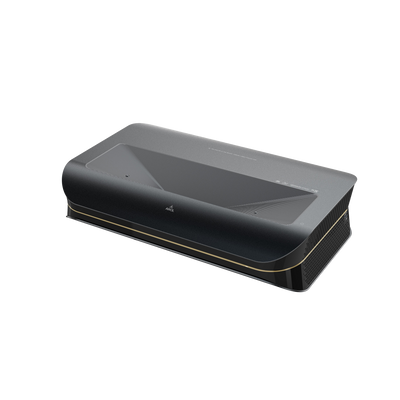
Modern high-end projectors, like the AWOL Vision Aetherion, solve this dilemma by supporting Dolby Vision for Gaming.
- The Benefit: Dolby Vision can deliver dynamic metadata directly from the console (notably on Xbox), which guides the image without relying solely on aggressive display-side DTM.
- Performance: AWOL states the Aetherion supports Dolby Vision Gaming alongside VRR (Variable Refresh Rate) and ALLM (Auto Low Latency Mode), with 1ms-class input latency at 240 Hz.
Best DTM Settings for UST Projectors
To get the most out of Dynamic Tone Mapping on a premium UST, follow these steps.
- Start with the Right Mode: Set your picture mode to "Filmmaker Mode" or "Cinema." This provides the most accurate color baseline before tone mapping is applied.
- Engage DTM: For HDR10 sources, ensure the Dynamic Tone Mapping setting is enabled.
- Know Your Hardware: DTM works best when it has a strong foundation. The Aetherion Max is rated at 3,300 ISO lumens, paired with 6,000:1 native contrast. This gives the tone mapping algorithm more "headroom" to work with, preventing the washed-out look common on dimmer projectors.
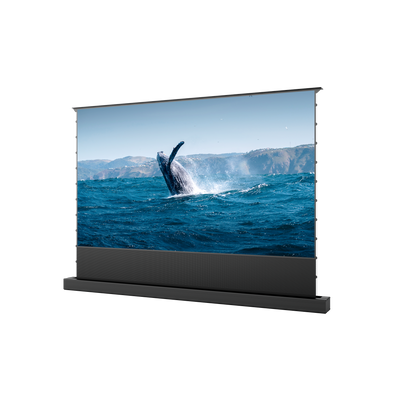
- Control the Environment: While DTM helps in ambient light, HDR always looks best when paired with the Best ALR screen for UST projectors.
FAQ: Common Tone Mapping Questions
Why does my HDR picture look so dark?
This is a common issue with standard HDR10 on projectors. It is likely because your projector is using static tone mapping, which can dim the entire image to preserve occasional bright highlights. Turning on Dynamic Tone Mapping usually resolves this.
Does Dynamic Tone Mapping add lag?
On most standard projector modes, yes, the extra processing adds input lag. However, if your projector supports a dedicated low-latency Game Mode or Dolby Vision Gaming, this lag is minimized or eliminated.
Is HGiG better than Dynamic Tone Mapping?
HGiG is more "accurate" to the console's mathematical output, but DTM often produces a punchier, more visible image on projectors. The choice depends on whether you prioritize accuracy or visibility.
Be the First to Know
Subscribe for special deals, news, and important product information, and get your exclusive $100 discount.
Related Articles
A Projector in an Apartment: Make Room for the Screen, Not a Theater

Small Man Cave Ideas: 10 Activity-Based Setups for Limited Space
Frame TV Alternative: A Smarter Vision for the Living Room
How to Connect a Speaker to a Projector
Hidden Projector Screen Ideas: How to Make a 120-Inch Screen Disappear