












Guide to HDMI Cables for Projectors: Setup and Troubleshooting
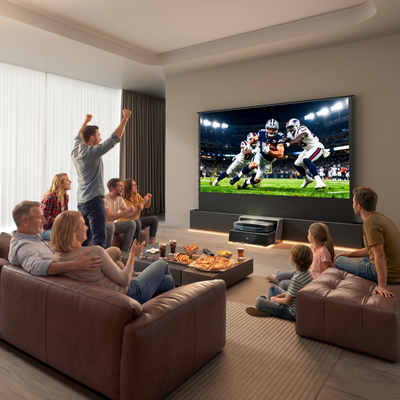
You planned the perfect movie night, made the popcorn, and gathered everyone in the living room. You plug the HDMI cable into your laptop, connect it to your projector, and... nothing. Just a frustrating blue screen that says "No Signal."
While HDMI is designed to be a universal, plug-and-play standard, the reality of modern home theater setups is much more complex. As resolutions have jumped to 4K and beyond, and laptops and phones have abandoned traditional ports, simply grabbing the nearest generic cord is no longer enough.
This guide will walk you through exactly what type of cable your specific setup requires, how to bridge the gap with modern mobile devices, and how to quickly troubleshoot those dreaded connection errors.
Key Takeaways
- Not all HDMI cables are the same: For 4K or 8K projectors, you must use a high-bandwidth HDMI 2.1 cable to prevent lag, signal drops, and image compression.
- Adapters are essential: Most modern laptops and smartphones require a dedicated USB-C or Lightning to HDMI adapter to bridge the physical connection to the projector.
- Software settings matter: A "No Signal" error is often fixed by simply adjusting your laptop’s display settings to "Duplicate" or "Extend" the screen.
- HDCP causes black screens: If your desktop mirrors perfectly but Netflix or Disney+ shows a black box, your cable or adapter lacks the required copyright protection (HDCP) compliance.
Why Your HDMI Cable Matters (More Than You Think)
A decade ago, any cheap HDMI cable could successfully push a 1080p image from a DVD player to a projector. Today, that same cable will likely fail in a modern home theater.
Modern projectors process massive amounts of data every second. They handle ultra-high-definition video, dynamic HDR metadata, and uncompressed audio formats simultaneously. If you use an outdated or low-quality cable, it physically cannot handle the bandwidth required. This results in lagging video, sparkling pixels, dropped audio, or a complete loss of signal. The cable is the lifeline of your cinematic experience—if it bottlenecks the data, your premium projector cannot perform at its best.
What Kind of HDMI Cable Do I Need for a Projector?

Choosing the right cable comes down to matching its data capacity (bandwidth) to your projector's output capabilities.
Bandwidth Matters: HDMI 2.0 vs. HDMI 2.1
If you are using a basic 1080p projector, an older standard HDMI or HDMI 2.0 cable will suffice. However, if you are investing in a premium 4K laser projector, you need a cable that can keep up.
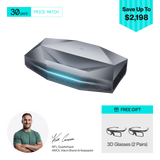
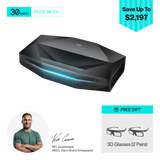
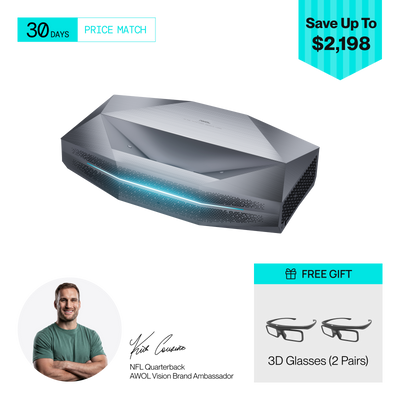
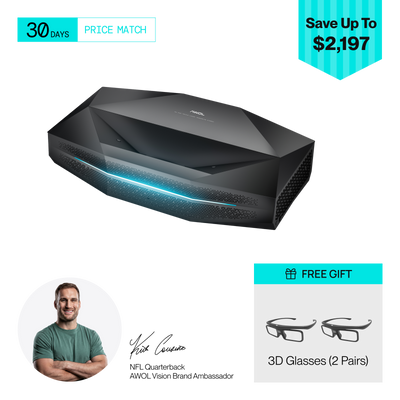
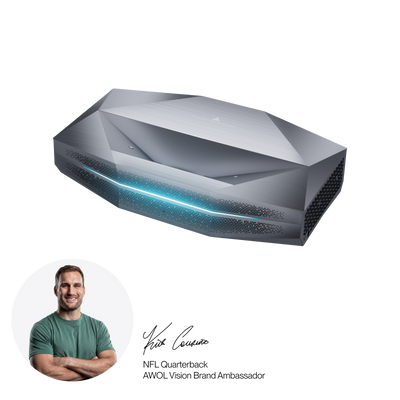
This is where HDMI 2.1 becomes mandatory. HDMI 2.1 cables support up to 48 Gbps of bandwidth, which is required for flawless 4K at 120Hz (crucial for modern gaming consoles like the PS5) and 8K resolutions. For example, if you are setting up an elite ultra-short-throw system like the AWOL Vision Aetherion Max, pairing it with the AWOL Vision 8K Ultra High-Speed Certified HDMI Cable ensures zero-lag gaming, flawless Dynamic HDR, and uncompressed eARC audio routing to your sound system without a single signal drop.
Cable Length: Active vs. Passive HDMI
- Passive Cables: Standard HDMI cables are "passive." They work perfectly for distances up to about 15 feet.
- Active/Fiber Optic Cables: If you are running a cable through the ceiling to a projector mounted at the back of a large room (20+ feet away), a passive cable will lose signal strength. You will need an Active HDMI cable (which has built-in signal boosters) or a Fiber Optic HDMI cable to maintain 4K quality over long distances.
How to Connect Laptops and Phones to HDMI

The biggest hurdle for most users is that the standard HDMI port has largely vanished from our everyday personal devices.
Connecting a Laptop
Many modern MacBooks and ultra-thin Windows PCs only feature USB-C or Thunderbolt ports. To connect these to your projector, you will need a USB-C to HDMI adapter or a multi-port hub.
Once physically connected, the laptop won't always push the image automatically. You must tell your computer's operating system what to do with the second screen. For detailed, step-by-step instructions on navigating Windows and macOS display settings, read our complete guide on how to connect your laptop to a projector.
Connecting a Phone
Projecting from a smartphone requires a specific "dongle" depending on your device's ecosystem:
- Older iPhones (iPhone 14 and earlier): Require an Apple Lightning to Digital AV Adapter.
- Newer iPhones (iPhone 15+) and Androids: Require a direct USB-C to HDMI adapter.
Not all Android phones support video output via USB-C (a feature known as MHL or DisplayPort Alternate Mode). To verify if your specific smartphone is compatible and to learn the exact mirroring steps, check out our comprehensive guide on how to connect a phone to a projector.
Troubleshooting: Why is My HDMI Not Working With the Projector?
If you have plugged everything in and are staring at a blank screen, run through this rapid-fire diagnostic checklist to fix the most common HDMI failures.
Fixing the "No Signal" Error
- Verify the Source Input: Projectors often have multiple HDMI ports (HDMI 1, HDMI 2, eARC). Use the projector's remote to ensure you have selected the exact port your cable is plugged into.
- Check the Seating: HDMI cables can easily come loose. Unplug the cable from both the device and the projector, blow out any dust, and push them back in firmly until you feel a click.
- Adjust Display Settings (Laptops): On Windows, press the Windows Key + P and select Duplicate or Extend. On a Mac, go to System Settings > Displays to mirror your screen.
Resolution and Refresh Rate Mismatches
Sometimes, a laptop will try to send a signal that the projector or the cable cannot understand—this is known as an "HDMI Handshake" failure. For instance, if your gaming laptop is trying to push a 120Hz refresh rate, but your older projector only supports 60Hz, the screen will stay black. Go into your laptop's advanced display settings and lower the output resolution to 1080p and the refresh rate to 60Hz. If the image appears, you can incrementally increase the settings to find your equipment's maximum limit.
The Black Screen on Streaming Apps (HDCP Errors)
If you can see your computer's desktop on the projector perfectly fine, but the video turns black the second you press play on Netflix, Disney+, or Hulu, your cable is not broken. You are experiencing an HDCP (High-bandwidth Digital Content Protection) block.
Streaming services encrypt their video signals to prevent piracy. If you are using a cheap, uncertified USB-C adapter or a very old HDMI cable that does not support HDCP 2.2, the streaming app will intentionally block the video feed. To fix this, you must upgrade to an HDCP-compliant adapter and a certified HDMI cable.
Next Steps for a Future-Proof Home Theater
Dealing with cords, adapters, and signal errors is the least glamorous part of setting up a home theater. However, taking the time to verify your hardware now will save you from endless troubleshooting later. By investing in a high-bandwidth, certified HDMI 2.1 cable and understanding how to navigate your device's display settings, you are guaranteeing that every time you dim the lights and press play, your projector will deliver the flawless, immersive experience it was designed for.

Be the First to Know
Subscribe for special deals, news, and important product information, and get your exclusive $50 discount.
Related Articles
Black Projector Screen: Is It Right for Your Room?
WiFi Projector Buying Guide: Features That Actually Matter
How to Create a Modern Living Room with an Ultra Short Throw Projector Cabinet?
Rear Projection Screen Guide: Best Materials Options
How Many Lumens for an Outdoor Projector?