














Projector Display Problems: 7 Common Issues
A projector transforms any room into a cinematic experience, but when the image misbehaves, it ruins the show. The good news? Most projector display problems stem from a few recurring triggers—and the majority can be solved in minutes without sending your unit in for repair.
This guide outlines the seven most frequent display issues, what causes them, and the steps to get your image looking crisp again. Use the quick-reference table below to identify your symptom, then dive into the step-by-step troubleshooting sections.
Quick Diagnostic Table
| Symptom | Likely Cause | Quick Fix |
|---|---|---|
| Blurry or Soft Image | Dusty/smudged lens, missed focus, low-res source | Clean lens, adjust focus, verify native resolution source |
| Keystone Distortion | Off-angle projector placement | Align optics physically; minimize digital keystone |
| Discolored / Tinted Picture | Cable, presets, or heat wear | Reseat HDMI, reset color modes, check airflow |
| Image Flickering | Power stability, cable, refresh rate | Reseat power/HDMI, use stable outlet, check refresh rate |
| Ghosting / Double Image | Processing lag, screen reflection | Disable aggressive motion settings, match frame rates |
| Burn-In / Fixed Spots | Heat stress or internal dust | Clean filters, avoid static images, service optical engine |
| Judder / Motion Stutter | Frame rate mismatch (24fps vs Hz) | Match display cadence/motion settings to content source |
1. Blurry or Soft Image

A blurry projection is the single most common complaint, but it rarely indicates a hardware failure. More often, it's caused by a dirty lens, minor focus drift, or low-quality video content scaled up to a large screen size.
Primary Triggers
- Fingerprints, dust, or oil film on the primary lens.
- Source resolution lower than the projector's native panel (e.g., 1080p upscaled to 4K).
- Incorrect throw distance or uneven physical placement relative to the screen.
Practical Fixes
- Clean the Optics: Carefully wipe the optical glass using a clean, dry microfiber cloth. If grease is present, our comprehensive guide on how to clean your projector lens walks through safe cleaning solutions and techniques.
- Refocus on Static Text: Use a dedicated test pattern or menu text to dial in sharpness rather than moving video scenes.
- Match Source Resolution: Ensure your streaming device or player is outputting the display's native resolution.
2. Keystone or Trapezoid Distortion

When your projector is angled relative to the screen, the image distorts into a trapezoid. While digital keystone correction easily squares the picture, it does so by cropping and scaling pixels—which inevitably reduces overall image brightness and fine detail.
Primary Triggers
- Projector isn't level or centered perpendicular to the screen surface.
- Over-reliance on digital keystone correction instead of physical alignment.
Practical Fixes
- Physical First: Adjust the mount or feet to level the projector before touching software settings.
- Optical Shift: If available, use mechanical lens shift instead of digital keystone to reposition the frame without sacrificing resolution.
- Minimize Correction: Keep digital adjustments as close to zero as possible.
For a deeper breakdown of physical alignment vs. digital trade-offs, explore our detailed guide to projector keystone correction.
3. Discolored or Tinted Picture

Whether it's a persistent yellow hue, washed-out corners, or a full-screen color cast, discoloration immediately degrades image quality. The culprit often ranges from an unseated cable to thermal degradation within the optical path.
Primary Triggers
- Loose or damaged HDMI cables dropping color channels.
- Incorrect color temperature or picture mode presets.
- Dust accumulation or overheating damaging internal polarizers/light engines.
Practical Fixes
- Check Signal Lines: Unplug and firmly re-seat your HDMI cable, or swap it for a certified High-Speed HDMI cable.
- Reset Picture Parameters: Revert picture settings back to factory defaults or neutral cinema modes.
- Inspect Thermal Path: Ensure air intake vents are clear. overheating
Read more in our blog projector discoloration diagnosis guide.
4. Flickering Image

A flickering screen can manifest as rapid brightness drops or subtle strobing. It is exceptionally distracting and typically linked to power delivery, thermal throttling, or signal handshake glitches.
Primary Triggers
- Unstable power outlets or aging lamp power supplies.
- Loose display cables or source refresh rate mismatches.
- Fan failure leading to thermal safety throttling.
Practical Fixes
- Secure Power & Video Lines: Connect your projector to a surge-protected outlet and confirm all connection points are tight.
- Adjust Refresh Rates: Set your source device (e.g., Apple TV, PC) to standard 60Hz or 24Hz output modes.
- Clear Air Filters: Clean dust filters to prevent the cooling system from forcing power drops to cool down internal components.
If the issue persists, review more instructions on why is my projector flickering and how to fix it.
5. Ghosting or Double Image

Ghosting appears as a soft, translucent "shadow" or double image trailing behind bright objects on screen. It is usually caused by signal processing delay, improper screen materials, or excessive image enhancement settings rather than a damaged panel.
Primary Triggers
- Over-processed image enhancement (sharpness, noise reduction) enabled in settings.
- Using high-gain or overly reflective screen materials improper for short-throw optics.
- Signal degradation over long cable runs.
Practical Fixes
- Turn Off Video Processing: Disable aggressive features like image sharpening, dynamic contrast, or frame interpolation in the menu.
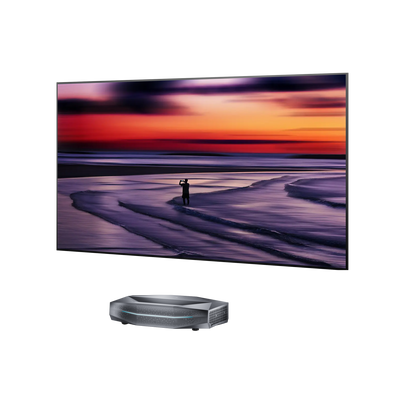
- Match Display Screens: Ensure your projection screen matches your throw type (e.g., pairing ultra-short-throw projectors with specialized Ambient Light Rejecting screens).
- Test Direct Connections: Remove intermediate AV receivers or switchers to rule out signal interference.
You can reference our projector ghosting troubleshooting guide for advanced signal testing steps.
6. Screen Burn-In or Fixed Spots

Unlike OLED panels, modern projectors rarely suffer from traditional phosphor or organic pixel burn-in. However, static menu elements left on screen for hours, combined with high heat, can cause thermal ghosting or permanent discoloration on internal optical components.
Primary Triggers
- Displaying static UI elements, pause screens, or gaming HUDs for extended periods.
- Internal optical dust specks casting sharp shadows on the light engine.
- Permanent heat damage to internal panels or color wheels.
Practical Fixes
- Mitigate Static Display: Avoid leaving paused content on screen. Enable auto-sleep features on streaming devices.
- Differentiate Dust from Damage: If a dark spot moves or changes focus as you turn the focus ring, it is dust on the lens; if it remains static regardless of focus, internal cleaning or service may be required.
- Manage Heat: Keep environmental temperature cool to avoid baking internal glass panels.
Read our full breakdown on projector screen burn for preventive habits and maintenance guidelines.
7. Judder or Stutter in Motion

Judder occurs when fast motion or slow camera pans appear jerky and uneven. This stuttering effect is fundamentally different from flickering; it is a timing mismatch between movie frame rates and display refresh rates.
Primary Triggers
- Viewing native 24fps film content on a display set to a mismatched refresh cycle without proper 3:2 pulldown handling.
- Misconfigured Motion Estimation, Motion Compensation (MEMC) or motion-smoothing settings.
Practical Fixes
- Enable Film/Cinema Modes: Set picture modes to dedicated "Cinema" or "Film" presets that natively handle 24Hz playback without judder.
- Tune Motion Smoothing: Set motion interpolation (MEMC) to Low or Off for movies to prevent stutter while avoiding the artificial "soap opera effect".
- Source Verification: Ensure media devices output native frame rates directly.
To understand the mechanics behind frame rates, read what is judder in film to optimize your playback setup.
Frequently Asked Questions
Why is my projector image blurry even at 4K resolution?
Resolution alone doesn't guarantee a sharp picture. A dirty lens, misaligned physical position, or viewing upscaled low-resolution content will lead to a soft image even on native 4K hardware. Always clean optics and verify source resolution first.
Why does my projected image have a yellow tint?
A global yellow tint typically stems from a loose HDMI connection, an overly warm color preset, or an aging light source/overheated optical component. Check cables and reset picture modes before assuming internal failure.
How can I stop my projector screen from flickering unexpectedly?
Start by bypassing power strips and testing a wall outlet directly, re-seating video cables, and clearing dust filters. Persistent flickering often points to thermal throttling or source refresh rate mismatches.
Conclusion
The vast majority of projector display issues stem from simple environmental variables, settings mismatches, or basic maintenance needs rather than hardware faults. By systematically checking your setup—focus, geometry, cabling, motion modes, and ventilation—you can resolve most picture flaws in minutes.
Keep your optics clean, ensure proper airflow, and enjoy a flawless big-screen viewing experience every time.
Be the First to Know
Subscribe for special deals, news, and important product information, and get your exclusive $100 discount.
