

















Projector Ghosting: The Ultimate Troubleshooting Guide to Sharp, Clear Images
Imagine you’ve just dimmed the lights, settled into your favorite chair, and pressed play on a long-awaited film—only to see a distracting, translucent shadow trailing behind every movement on the screen. This visual artifact, known as projector ghosting, can instantly turn a cinematic masterpiece into a frustrating experience.
When your once-crisp 4K image begins to look like a double exposure, it’s natural to assume your hardware is failing. However, in most cases, “ghosting” or double-image effects are not a sign of permanent damage. Instead, they are often caused by settings, signal issues, or environmental factors—and can usually be resolved with a structured troubleshooting approach.
This guide will help you move from confusion to clarity. By identifying the root causes of image degradation and following a systematic diagnostic process, you can restore your projector to optimal performance and enjoy sharp, accurate visuals again.
Quick Troubleshooting Summary
| Symptom | Likely Cause | Actionable Fix |
|---|---|---|
| Trailing Ghosting | Motion Smoothing too aggressive | Disable "Motion Smoothing" in settings |
| Static Double Image | Signal interference / Poor cable quality | Use high-quality, short (<6ft) HDMI cable |
| Color Fringing | Panel alignment offset | Enable "Panel Alignment" in menu |
| Halo Effect | Lens dust / Internal reflection | Clean lens with microfiber cloth |
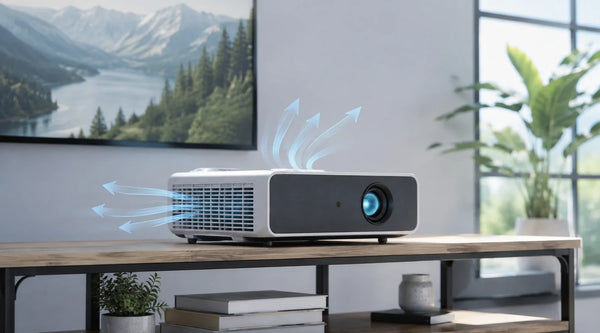
| Intermittent Ghosting | Overheating / Poor airflow | Clean filters; ensure 12"+ clearance |
What is Projector Ghosting? (Identifying the Signs)
Before fixing projector ghosting or blur, it’s important to correctly identify what you are seeing. Different visual artifacts often have different causes.
Trailing Ghosting (Motion Issues)
This appears as faint trails following moving objects, most commonly visible in fast-action scenes or sports. It is usually caused by panel response limitations or overly aggressive motion interpolation settings.
Static Double Image (Alignment or Signal Issues)
If a faint duplicate of the entire image remains visible even when the content is paused, you are likely dealing with a static double image. This is often linked to poor cable quality, signal interference, or internal optical reflections.
Motion Blur (Refresh Rate Issues)
Unlike ghosting, motion blur does not create a distinct second image. Instead, it appears as a general loss of sharpness during motion. This typically results from mismatched refresh rates between the source device and the projector.
The "Ghosting Diagnostic Matrix": A 10-Minute Triage
To avoid unnecessary trial-and-error, use this structured diagnostic process to isolate the issue quickly.
Step 1: The “Pause Test”
Play a scene with visible ghosting and pause it.
- If ghosting disappears immediately, the issue is related to motion processing or refresh rate.
- If the double image remains, the issue is likely physical (cables, optics, or alignment).
Step 2: The “Input Isolation” Test
Disconnect your external source and display the projector’s built-in menu. If the menu appears sharp, the projector hardware is functioning correctly. The issue likely comes from the source device or signal chain.
Step 3: The “Raw Signal” Test
Bypass all intermediaries such as AV receivers, adapters, or long cable runs. Connect your source directly to the projector using a short HDMI cable.
If the issue disappears, the problem lies in the signal chain or cable quality.
How to Fix Projector Ghosting
Most ghosting issues are caused by bad data transmission or over-processing. Follow these specific steps to isolate and fix the problem:
1. Optimize Cable Integrity
Quick Test: If you are using an HDMI cable longer than 15 feet, replace it temporarily with a high-quality cable under 6 feet. If ghosting disappears, the issue is likely signal attenuation or interference.
Permanent Fix: For longer distances, use an active HDMI cable or fiber-optic HDMI cable to maintain signal integrity.
Avoid Adapters: Remove VGA adapters, docking stations, or HDMI-to-analog converters. Direct digital connections are essential for maintaining image clarity.
2. Disable Digital Image Processing
Reset Keystone Correction: Set keystone correction to 0 whenever possible. Digital correction can distort pixel geometry and introduce visual artifacts that resemble ghosting.
Improve Physical Alignment: Whenever possible, align the projector physically rather than digitally. Proper placement reduces the need for image correction.
Turn Off Motion Enhancement Features: Disable settings such as:
- Motion Smoothing
- Frame Interpolation
- Advanced Image Enhancement
These features often introduce motion artifacts that can be mistaken for ghosting.
3. Sync Your Refresh Rates
Mismatch between source output and projector capability is a common cause of motion artifacts.
Force Standard Refresh Rate: Set your source device to 60Hz unless your projector explicitly supports higher rates.
On most PCs: Display Settings → Advanced Display Settings → Refresh Rate
Ensure the output matches the projector’s native specification.
4. Hardware Reality Check
If the issue persists after signal and settings checks, the cause may be physical.

LCD Panel Misalignment
In 3LCD systems, red, green, and blue panels must align precisely. Even slight misalignment can cause color fringing or a faint double-image effect.
Lens and Optical Issues
Dust, smudges, or internal reflections can scatter light and create halos or secondary glow effects around bright objects. Clean the external lens carefully using a microfiber cloth.
Thermal Effects
Excess heat can affect internal alignment. Ensure proper ventilation and maintain at least 12 inches of clearance around exhaust vents.
Debunking the "Lamp Myth"
A common misconception is that a dying bulb causes ghosting. In reality, a failing lamp will result in a dimmer image or a color shift (often toward yellow or flickering), but it almost never causes a double image or motion trails. If you see ghosting, don’t rush to buy a new bulb yet.
More FAQs for Projector Ghosting
Can projector ghosting happen with 4K or high-end projectors?
Yes. Even 4K or premium projectors can still experience ghosting. High resolution does not eliminate ghosting because the issue is usually related to motion processing, refresh rate limitations, or signal transmission—not resolution itself. Even advanced systems may show artifacts if motion interpolation, HDMI signal quality, or source frame rate is not properly matched.
Why does projector ghosting get worse in fast-moving scenes like sports or gaming?
Ghosting is more noticeable in fast-motion content because the projector must continuously refresh and process rapidly changing frames. When the refresh rate is low or motion handling is not optimized, previous frames may persist briefly on screen, creating visible trails or overlapping images. This is especially common in sports, action movies, and gaming.
Can streaming quality or internet speed cause projector ghosting?
Yes, indirectly. Poor streaming quality, compression artifacts, or unstable internet can introduce visual distortions that may look like ghosting or image smearing. In some cases, the issue is not the projector itself but the compressed video signal being delivered from the source device or streaming platform.
Is projector ghosting always a hardware defect?
No. Most ghosting cases are not caused by hardware failure. In fact, the majority are linked to:
- HDMI cable limitations or interference
- Incorrect refresh rate settings
- Motion interpolation / image processing features
- Source device output issues
Only persistent ghosting across all inputs (including projector menus) may indicate internal optical or panel alignment issues.
Can firmware updates fix projector ghosting?
In some cases, yes. Firmware updates can improve image processing, motion handling, and signal synchronization between the projector and external devices. If ghosting appears suddenly or after a system update, checking for a newer firmware version or performing a reset can sometimes resolve the issue.
Final Thoughts
Projector ghosting can be an intimidating problem, but by applying a methodical approach—testing the signal first, then the settings, and finally the hardware—you can solve the vast majority of issues at home. Don't let a "ghost" in the machine ruin your movie night. Take ten minutes to run the diagnostic matrix, invest in high-quality cables, and ensure your environment is optimized for the best possible viewing experience. With a little patience, you'll be back to enjoying sharp, vibrant, and clear images in no time.
Be the First to Know
Subscribe for special deals, news, and important product information, and get your exclusive $100 discount.
Related Articles
Projector Says No Signal? How to Find and Fix the Problem
Why Is My Projector Blurry? 8 Causes and the Fixes That Work
Projector Lens Shift Explained: How Much Placement Freedom You Actually Get
Projector Lens Replacement: Can You Replace or Repair the Lens?
What Does a 4K 120Hz Projector Mean and Why Does It Matter?