















Why Is My Projector Blurry? 8 Causes and the Fixes That Work
You settle in for movie night, hit play, and the picture looks like it's been smeared with Vaseline. The menu was crisp five minutes ago, nothing has moved, and yet the image is fuzzy. Take a breath — a blurry projector is almost never a hardware failure. In most cases it's a setting, a cable, or a habit that's fixable in under five minutes. This guide walks through the 8 most common reasons, in the order you should check them.
Quick Triage: What Does the Blurry Image Look Like?
-
Whole image soft or hazy → focus, lens, distance, or ambient light
-
Only the corners or edges are soft → alignment, screen flatness, or 3LCD panel drift
- Sharp at first, then drifts → thermal focus shift
- Sharp on the menu but soft from your source → signal, resolution, or cable
1. Focus — But Wait 30 Minutes First
A projector lens is a stack of glass, plastic, and metal with different thermal expansion coefficients. The lamp heats the front faster than the rear, so the focal plane physically drifts for the first 20 to 30 minutes. Cold focus is not warm focus. A focus ring that turns without changing the picture means the helical track has slipped.
How to fix:
- Run the projector for 30 minutes before any focus adjustment
- Project a text-heavy image or the built-in focus pattern
- Turn the focus ring in quarter-turn increments, pausing 2 seconds between each
- Stop at the sharpest center; ignore the corners
- If the ring turns freely with no effect, contact a technician
2. Dirty Lens

A speck of dust is a few microns wide — at 4K, that one speck scatters enough light to soften a 30-pixel patch. Fingerprint oils refract unevenly. Paper towels and household cleaners leave micro-scratches in the anti-reflective coating; every scratch scatters more light than the dust it was trying to remove.
How to fix:
- Power off, unplug, and wait for the lens to cool
- Use a rocket blower to remove loose dust
- Wipe in a single circular motion from center outward with a microfiber cloth
- Apply lens cleaner to the cloth, never the lens, for oily smudges
3. Throw Distance and Alignment
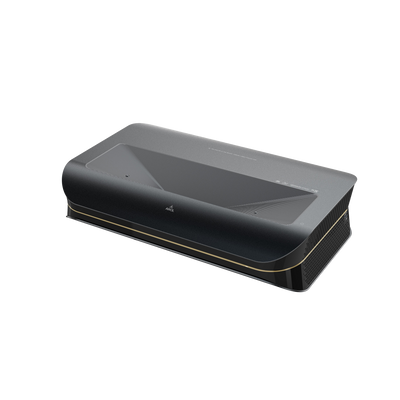
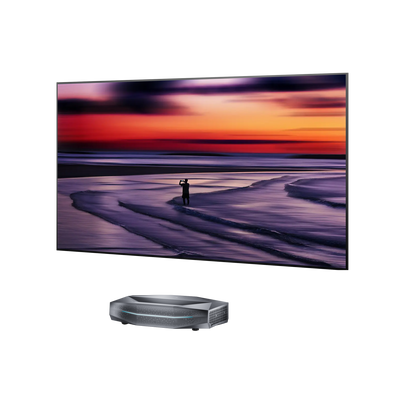
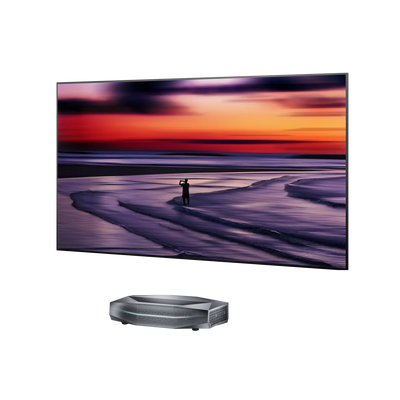
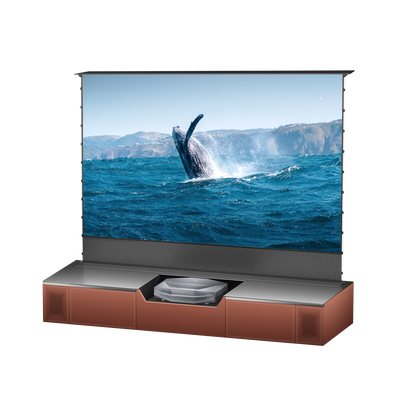
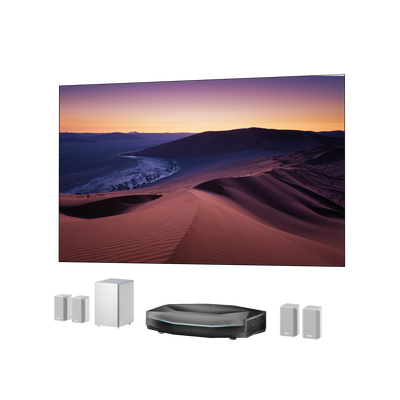
A lens can only bring one specific distance into sharp focus. The throw ratio on the spec sheet tells you where the lens has to sit to land inside that range. Too close and the lens can't pull the image together; too far and it spreads beyond what the lens can resolve at the edges. UST projectors are the worst case — focus range only a few inches wide, so a wavy screen or half-inch misalignment turns the corners soft.
How to fix:
- Find your model's throw ratio in the manual
- Measure from the lens center to the screen, not the projector's back
- Use a bubble level to confirm the lens is square
- For UST, swap the screen for a fixed-frame model first
- See our guide to lens shift for alternatives
4. Digital Keystone Softens the Picture

When a projector is angled up or down, the light cone hits the screen as a trapezoid because the top travels farther than the bottom. Digital keystone pre-distorts the image inside the chip — squeezing it into a smaller portion of the panel so the trapezoid cancels. That pre-distortion discards pixels, dims the image, and creates a faint gray border. Keystone can't fix a focus problem, only a placement one.
How to fix:
- Reposition to dead-center before opening any keystone setting
- Use optical lens shift for off-center placement if your model has it
- Apply digital keystone only at the minimum angle you need
- Decision point: a slight trapezoid is better than a soft, perfectly rectangular image
- See the keystone correction walkthrough for the full hierarchy
5. Source, Cable, and Signal Mismatch
The projector's own menu is generated internally at the panel's native pixel count, which is why it always looks crisp. Anything you plug in sends an external signal that may not match. If the source sends 1080p and the projector is 4K, the projector upscales; if the source sends 4K and the cable is too old or long, the cable drops bits. 4K HDR is the most demanding case. See our 4K projector vs TV guide for resolution basics.
How to fix:
- Set the source's output resolution to the projector's native
- Replace the HDMI cable with a Certified Premium High-Speed or Ultra High-Speed model
- For runs over 15 feet, use an active or fiber-optic HDMI cable
- If text looks pixelated on a 4K projector, switch the source's chroma to 4:4:4
6. Screen Surface and Ambient Light
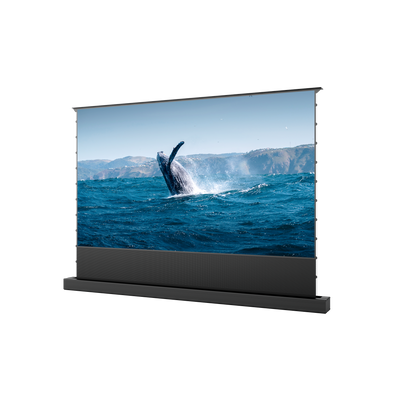
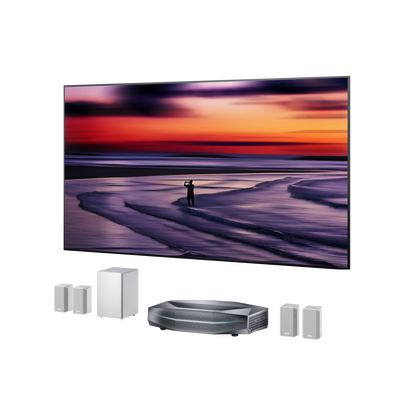
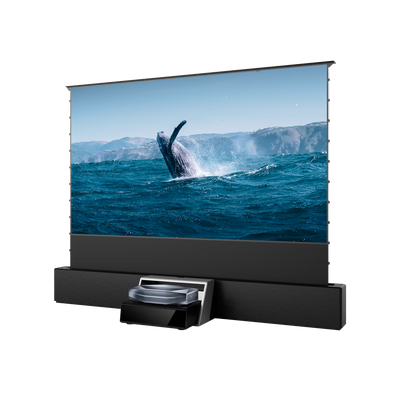
The screen is part of the optical system. A white wall has roller marks and paint texture that scatter light unpredictably. A pull-down screen develops waves that shift the focal plane by millimeters. An AT screen has a perforated surface that softens fine 4K detail. Screen gain above 1.3 reflects more light to the center and less at the edges, so off-axis viewers see a less sharp image.
How to fix:
- Replace wavy pull-down screens with a fixed-frame screen (1.0–1.1 gain is safe)
- Sand and repaint walls with matte white projector paint
- Close curtains and dim overhead lights during viewing
7. Overheating — Heat Makes the Optics Drift
A clogged air filter or poor ventilation makes the lamp housing run hotter than designed, and the optics physically expand as the temperature rises. The focal plane shifts and the picture goes soft — the same drift as cold focus, in reverse.
How to fix:
- Clean the air filter and confirm at least 12 inches of clearance around vents
- See our overheating guide for the standard fixes
8. Lamp Age and Panel Drift
A worn lamp loses brightness and shifts color toward yellow, not blurriness — though a dim picture can read as "soft" in side-by-side comparison. In 3-chip projectors, the red, green, and blue panels are aligned at the factory to within a fraction of a pixel; a small impact can let one drift, showing up as corner fuzz and color fringing.
How to fix:
- Check the lamp-hour counter in the menu; replace the lamp if past rated life
- Run the panel-alignment routine in the projector's advanced menu
- Decision point: sharp but a faint duplicate trails motion → ghosting; if it pulses → flickering
Frequently Asked Questions
Why is my projector blurry even after I adjust the focus?
The projector may be angled, outside its throw range, or facing an uneven surface. Reset keystone, align the projector, and test its menu. If no area becomes sharp, it may need service.
Why is my projector blurry on one side?
One-sided blur usually means the projector and screen are not parallel. Reposition the projector, then check for a bowed wall, wrinkled screen, or unlevel stand.
Why does my projector look blurry when connected to a laptop?
The laptop may be sending the wrong resolution or mirroring a lower-resolution display. Select the recommended resolution, test extended-display mode, and review display scaling.
Can a bad HDMI cable make a projector look blurry?
Indirectly, yes, if the devices fall back to a lower format. However, bad cables more often cause flickering, sparkles, black screens, or signal loss. Check the input information and test a certified cable.
Conclusion
A blurry image rarely means the projector has failed. Test the built-in menu, warm up the unit, adjust focus, and clean the lens. Then verify placement, minimize keystone, check source resolution, and inspect the screen. If blur remains with color fringing, internal haze, or unresponsive focus controls, seek professional service.
Be the First to Know
Subscribe for special deals, news, and important product information, and get your exclusive $100 discount.
Related Articles

How to Choose the Best Wall Color for a Projector

Rec2020 Explained: Color Gamut, HDR and Picture Quality
Projector Says No Signal? How to Find and Fix the Problem
Projector Lens Shift Explained: How Much Placement Freedom You Actually Get
Projector Lens Replacement: Can You Replace or Repair the Lens?