
















What Is ALLM? Why This Setting Matters for PS5 & Xbox Gaming
Experience 1ms latency on a 200-inch screen.
1ms Latency + VRR, 6000:1 Native Contrast, 3300 ISO Lumens
Explore Aetherion Max NowYou know the feeling: You’ve just finished streaming a movie, and now you’re firing up your PS5 or Xbox for a quick match. You press jump, but on screen, your character hesitates. The controls feel "floaty," heavy, and unresponsive.
The problem? You likely forgot to switch your TV or projector into "Game Mode."
For years, gamers had to manually dig through settings menus every time they switched from cinema to gaming to fix this. Enter ALLM (Auto Low Latency Mode)—the "invisible butler" of the HDMI 2.1 standard that solves this headache automatically.
Here is everything you need to know about ALLM, how it improves your gaming, and why it’s a critical feature for your next home theater upgrade.
The Short Answer: What Does ALLM Actually Do?
ALLM stands for Auto Low Latency Mode. It is a feature defined in the HDMI 2.1 specification that allows a source device (like a gaming console or PC) to send a signal to your compatible display (TV or projector) to automatically switch into its lowest latency setting.
Think of it as a "digital handshake." When you launch a game, your console tells your display: "We are playing a game now. Stop the extra processing and focus on speed."
When you close the game and switch back to Netflix or YouTube, the console sends a new signal: "We are done gaming. You can go back to Cinema Mode now."
Why Does This Matter?
Without ALLM, you have two bad options:
- Manual Switching: You have to grab the remote and change settings every time you change content.
- Permanent Game Mode: You leave your display in Game Mode 24/7, which lowers your cinematic quality.
ALLM gives you the best of both worlds: pure speed for gaming and cinematic processing for movies, without you ever touching a remote.
How ALLM Reduces Input Lag: Winning the War on Delay
To understand why ALLM is necessary, you have to understand the enemy: Input Lag.
Modern 4K displays are essentially powerful computers. When you watch a movie, they apply heavy post-processing:
- Motion Smoothing: To reduce blur.
- Dynamic Tone Mapping: To enhance contrast frame-by-frame.
- Upscaling: To make lower-resolution content look sharp.
This processing takes time—milliseconds of time. In a movie, a 100ms delay doesn't matter because the audio is synced to match. But in gaming, a 100ms delay is disastrous. It creates a disconnect between your brain, your fingers, and the screen.
ALLM triggers a "bypass" mode. It tells the display to strip away non-essential processing to get the image to your eyes as fast as possible. This is essential for competitive gaming where reaction time is everything.
ALLM vs. VRR: Understanding the Difference for Better Gaming

It is common to see these two acronyms thrown around together on spec sheets, but they serve two very different purposes in your gaming setup.
- ALLM (Auto Low Latency Mode): Focuses on SPEED. It ensures your inputs are registered instantly by minimizing processing delay.
- VRR (Variable Refresh Rate): Focuses on SMOOTHNESS. It synchronizes the display's refresh rate with the console's frame rate to prevent "screen tearing" and stuttering.
The Verdict: For the ultimate experience, you want a display that supports both. If you are exploring higher frame rates, it is also worth understanding is 240Hz good for gaming to see how refresh rates impact your gameplay alongside latency settings.
The Trade-Off: Does ALLM Ruin Picture Quality?
A common fear among home theater enthusiasts is that Game Mode "ruins" the picture. Historically, this was true. Older TVs would strip away too much processing, leaving you with washed-out colors.
However, modern premium displays have solved this. High-end hardware can now sustain HDR (High Dynamic Range) and color accuracy even while in Low Latency Mode.
Crucially, you need to ensure your display maintains a high projector contrast ratio even when gaming features are active. This ensures that while you get the speed of a monitor, you don't lose the deep blacks and rich details that make the game immersive.
ALLM Compatibility: Requirements for PS5, Xbox, and HDMI 2.1
To use ALLM, every link in your chain must support it. If one device is outdated, the feature will not work.
1. The Source and Cable

You need a device capable of sending the ALLM signal (PS5, Xbox Series X/S, or modern GPU) and a High-Speed HDMI 2.1 cable.
2. The Display (TV or Projector)

This is usually the bottleneck. Your display must explicitly support HDMI 2.1 features.
Many users struggle when deciding between a 4K Projector vs. TV. Until recently, HDMI 2.1 features were mostly exclusive to TVs, leaving projection enthusiasts with slower response times. However, the technology has leaped forward.
The New Standard for Large-Screen Gaming If you are wondering are projectors good for gaming in 2026, the answer is a resounding yes—if you choose the right model.
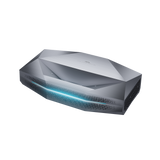
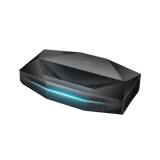
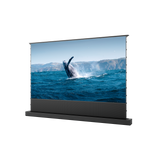
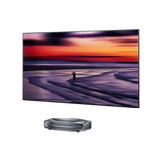
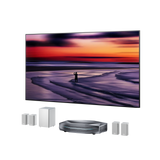
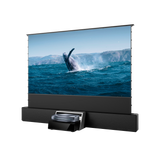
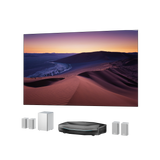
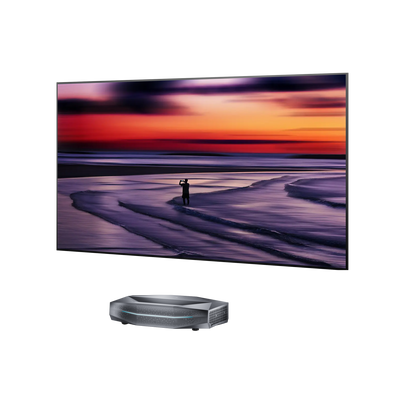
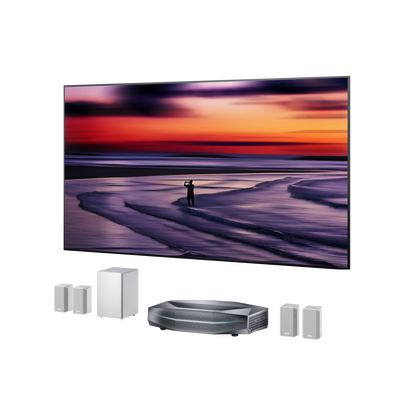
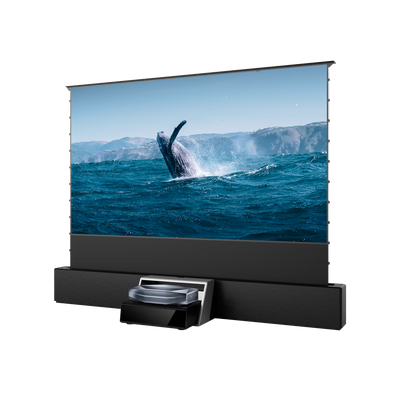
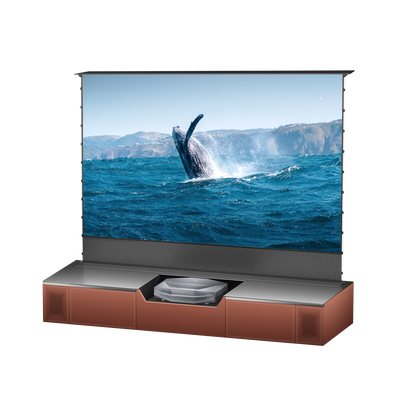
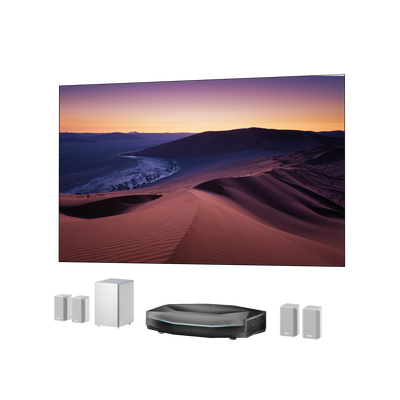
A prime example is the AWOL Vision Aetherion.
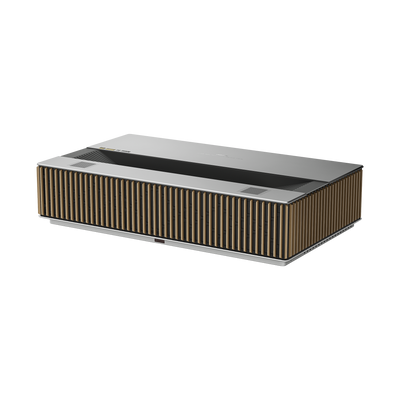
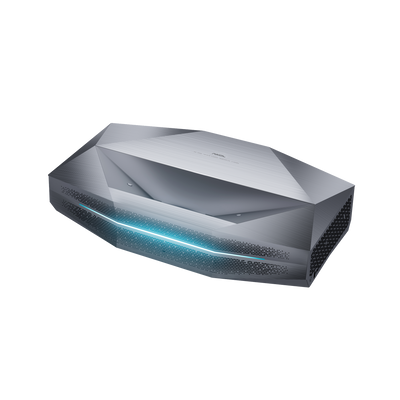
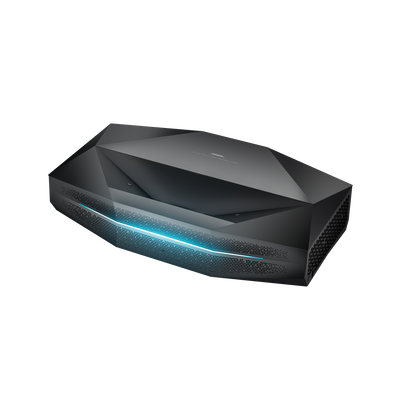
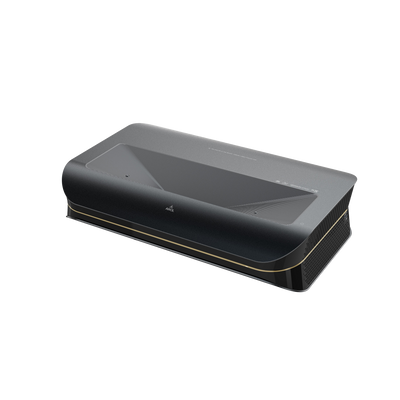
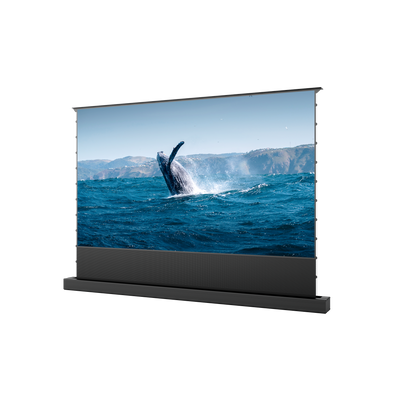
Unlike traditional projectors that struggle with input lag, the Aetherion is built with dedicated HDMI 2.1 ports that fully support ALLM. It effectively bridges the gap in the projector vs. monitor for gaming debate by offering 1ms ultra-low latency—speed previously reserved for eSports monitors—on a massive 150”+ cinematic screen.
By combining this speed with Triple Laser technology, the Aetherion ensures you don't have to sacrifice visual fidelity for performance.
Troubleshooting: Why Is ALLM Not Working?
If you have the right gear but the "Game Mode" notification isn't popping up, check these common issues:
- The "Pass-Through" Problem: If your console is routed through an older receiver, it might block the signal. Connect directly to the display.
- Port Specificity: Ensure you are plugged into the specific HDMI 2.1 / 120Hz port.
- Check Your Settings: If you are unsure if your current setup is optimal, check our guide on how to choose a gaming projector to verify your specs match your console's output.
Summary: Should I Turn ALLM On?
Yes.
There is virtually no downside to keeping ALLM enabled. It is a "set it and forget it" feature that ensures you are getting the best performance for your content.
Whether you are comparing Laser TV vs. OLED or weighing projectors vs. TVs for eye comfort, ensure that whatever display you choose supports ALLM. It allows you to enjoy the cinematic scale of movies and the blisteringly fast response of competitive gaming without ever touching a remote.
FAQ on ALLM (Auto Low Latency Mode)
What is the difference between ALLM and Game Mode?
"Game Mode" is a specific setting on your TV or projector that reduces processing to lower input lag. ALLM is the signal that turns Game Mode on or off automatically. Think of Game Mode as the destination, and ALLM as the driver that takes you there.
Is ALLM worth it for casual gaming?
Absolutely. Even for casual games, high input lag can make controls feel sluggish. ALLM ensures you always get the responsive feel the developers intended without you having to mess with settings menus every time you play.
Should I have ALLM on or off?
You should keep it ON in your console settings. It is designed to be smart—it will only activate when you are actually playing a game. When you switch to watching a movie on Netflix or Blu-ray, it will automatically turn off to prioritize picture processing.
Does ALLM work on HDMI 2.0 cables?
While some limited functionality might work, ALLM is an HDMI 2.1 specification. To ensure reliability and to use it alongside 4K/120Hz or VRR, you should use an Ultra High Speed HDMI 2.1 cable.
Be the First to Know
Subscribe for special deals, news, and important product information, and get your exclusive $100 discount.
