















Playing PS4 on a Projector: Setup, Settings, and Better Gaming
Playing PS4 on a projector starts with a direct HDMI connection. Connect the console’s HDMI OUT to the projector’s HDMI input, select that input, and enable the projector’s gaming mode if available. You can then adjust resolution, HDR, and sound to match your equipment.
The reward is scale: exploring an open world or sharing a split-screen race feels different when the game fills a wall-sized picture. Here is how to get your PS4 setup working and decide whether a projector upgrade makes sense.
 Can You Play PS4 on a Projector?
Yes. A projector with a compatible HDMI input can display your PS4 just as a television does. You do not need a smart projector or an internet connection for the HDMI link itself.
Your console determines the source signal:
|
Console |
What to expect |
|
PS4 or PS4 Slim |
Up to 1080p output for gaming; HDR with compatible content and equipment |
|
PS4 Pro |
Up to 4K output with compatible equipment; rendering resolution and frame rate vary by game |
A 4K projector can display a standard PS4’s picture, but that does not turn the game into native 4K. Likewise, a 120Hz projector does not make PS4 games run at 120fps. For ordinary PS4 gaming, prioritize a clear picture and low input lag at the signal you actually use.
How to Connect PS4 to a Projector
Start with the simplest signal path before adding other equipment.
-
Turn off the PS4 and projector.
-
Connect an HDMI cable from the PS4’s HDMI OUT to an HDMI input on the projector.
-
Turn on the projector and select the matching input, such as HDMI 1.
-
Turn on the PS4 and check that its home screen appears.
-
Select the projector’s Game Mode or equivalent low-latency setting, if available.
HDMI carries both picture and sound. If the projector has built-in speakers, check its volume and mute setting before adding an external audio system.
For PS4 Pro at 4K/60Hz, use a Premium High Speed HDMI cable and a compatible projector input. An HDMI 2.1 input is backward compatible, but buying a newer cable alone will not improve the console’s rendering resolution or frame rate.
Set Up Picture, Input Lag, and Sound
Match resolution and HDR to your equipment
Open Settings > Sound and Screen > Video Output Settings on the PS4. Start with Resolution set to Automatic, then check Video Output Information to see what the connected display supports.
On PS4 Pro, compatible 4K equipment makes 2160p output available. A game may still render below native 4K or offer different quality and performance modes.
For HDR, enable the projector’s appropriate HDMI setting, then set HDR and Deep Color Output to Automatic on the console. Use an HDR-compatible game and run Adjust HDR from the same menu. Calibrate under the lighting you normally play in; do not judge the result from the menu alone.
Reduce processing before changing other hardware
Projector input lag is the delay added while the display processes and shows the incoming image. It is separate from internet lag and the game’s own frame rate.
Enable the projector’s gaming mode and turn off motion interpolation for gameplay. Position the projector square to the screen and minimize digital geometry correction, especially if the manual identifies restrictions in its fastest mode.
When comparing projectors, check latency at 1080p/60Hz or 4K/60Hz as appropriate. A headline figure measured at 120Hz describes a different operating condition. Test a familiar game offline to help distinguish display delay from network problems.
Choose an audio route that works
For projector speakers, start with Settings > Sound and Screen > Audio Output Settings > Audio Format (Priority) > Linear PCM. Check the selected output and the projector’s speaker setting if sound is missing.
For private listening, plug compatible wired headphones into the DUALSHOCK 4 controller. Under Settings > Devices > Audio Devices > Output to Headphones, choose All Audio rather than Chat Audio.
For a soundbar, use the projector’s supported audio connection or compatible HDMI passthrough equipment. Check the soundbar’s actual ports before planning the connection. PS4 Slim has no optical audio output, so an optical connection directly from the console is not an option on that model.
Fix Common PS4 Projector Problems
No signal or a black screen: Confirm the selected HDMI input, reseat the cable, and test another cable or input. Temporarily bypass receivers, switches, and adapters. Our projector no signal troubleshooting guide explains how to isolate the failing connection.
If an unsupported resolution prevents access to the menu, use PS4 Safe Mode’s Change Resolution option. With the console off, hold its power button until the second beep, connect the controller by USB, and select that option. It restarts the console at 480p so you can reconfigure the output.
Soft text or blurry corners: Check focus, projector alignment, and the projection surface. If the PS4 menu is sharp but a game looks softer, its rendering resolution may be the cause. See our guide to why your projector is blurry.
Washed-out dark scenes: Reduce light falling directly on the projection area and recheck HDR calibration. Increasing brightness alone will not restore contrast lost to room light.
Where AWOL LuxVision Fits a PS4 Setup
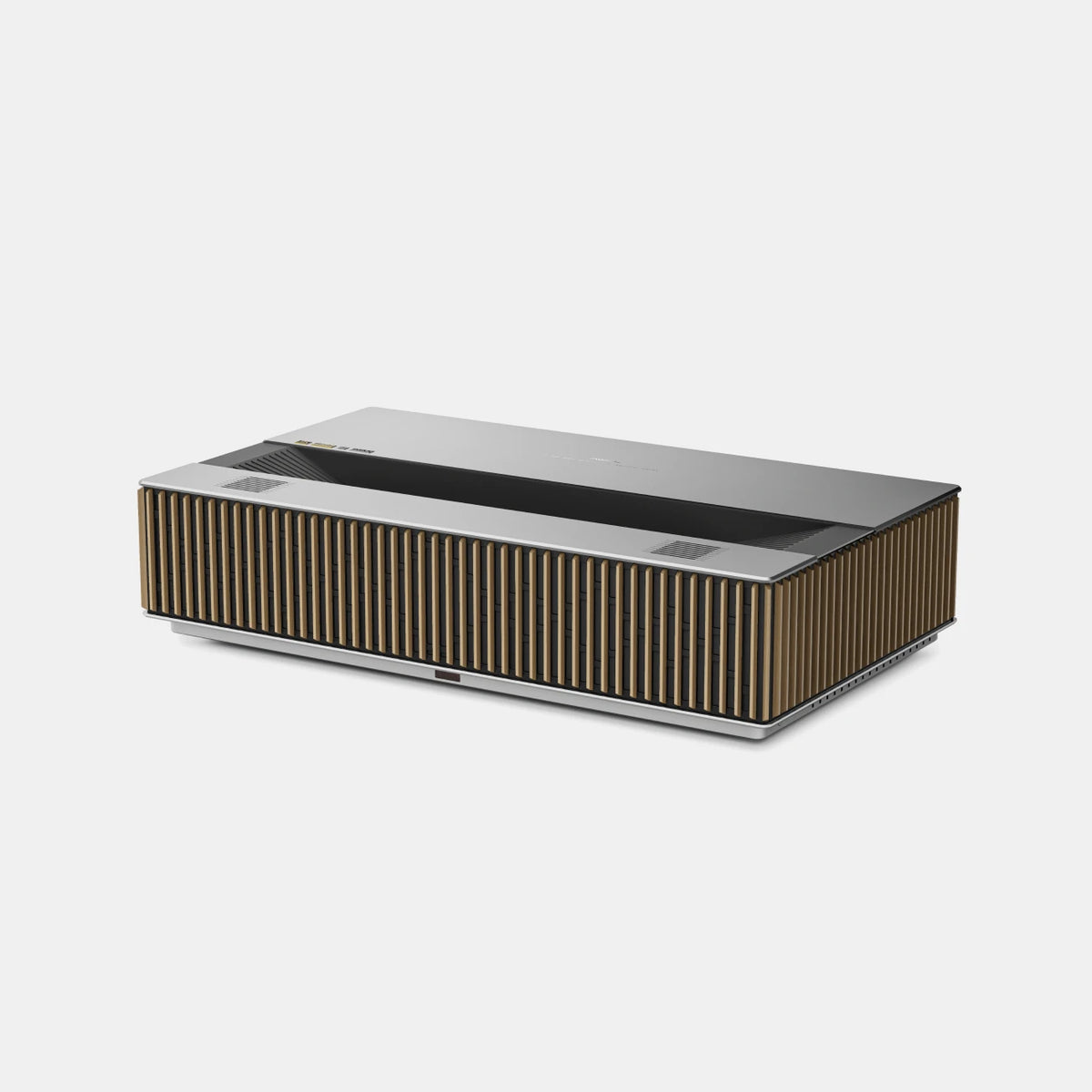
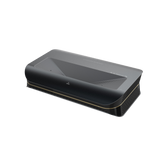
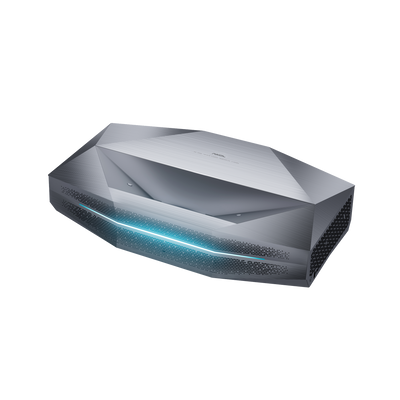
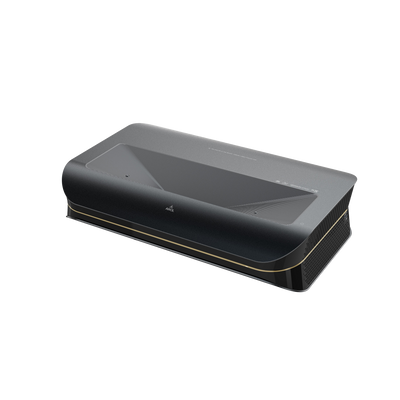
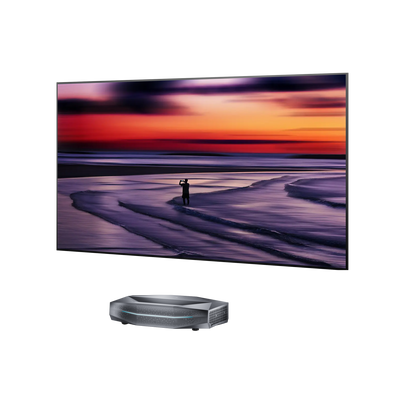
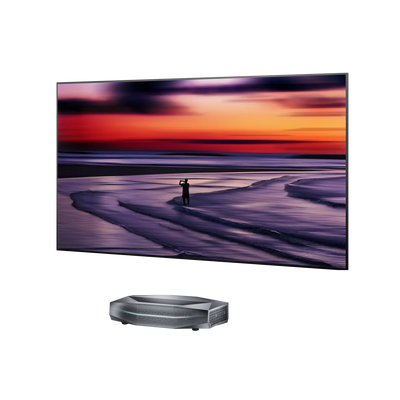
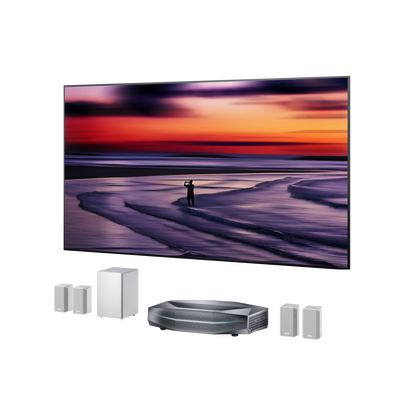
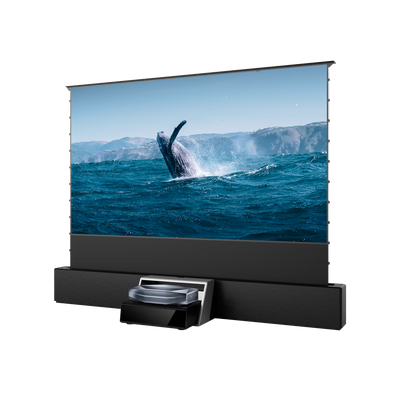
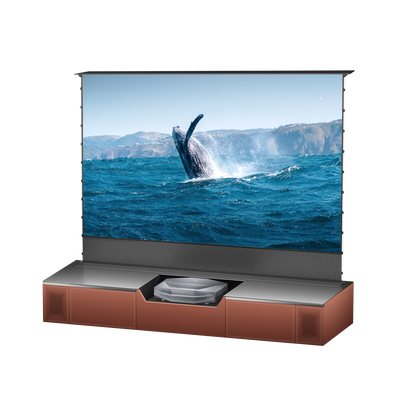
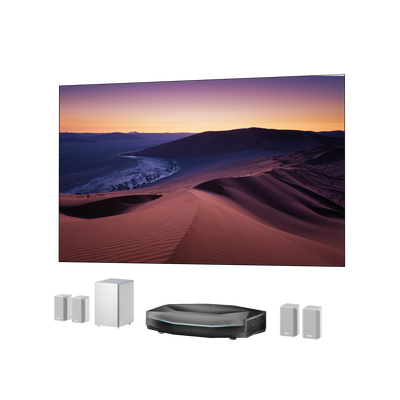
If your goal is a shared gaming and movie space, AWOL LuxVision offers a large-screen upgrade with flexible placement. Its RGB triple-laser system provides 6,000 ISO lumens, while its 0.18:1 ultra-short-throw design keeps the projector close to the screen.
Motorized vertical Optical Shift adjusts image height within a specified 142%–152% offset range without digitally cropping or scaling the picture during that adjustment. This helps when matching an existing screen position and media console. Measure the complete installation, including the projector body, cables, and ventilation; our LuxVision buying guide covers these checks.
LuxVision also supports end-to end 4K 120Hz, VRR, ALLM, and HDMI 2.1 for compatible sources. These capabilities provide room for a future console or PC upgrade. PS4 does not output 4K/120Hz or support VRR and ALLM. LuxVision’s rated 1 ms input lag applies specifically at 4K/120Hz and should not be treated as a PS4 latency measurement.
PS4 Projector FAQs
Do you need a 4K projector for PS4?
No. A compatible 1080p projector can serve a standard PS4 or PS4 Slim. A 4K model becomes more relevant for PS4 Pro output, other entertainment sources, or a future upgrade.
Can you play PS4 on a projector wirelessly?
Wireless HDMI requires a separate transmitter and receiver. Supported formats and added delay vary by kit. Direct HDMI is the straightforward starting point for gaming.
Can you project PS4 games onto a wall?
Yes, on a suitable flat surface. Texture and wall color can affect detail and color. Try familiar game scenes from your usual seat before deciding whether to add a screen.
Make Your PS4 Setup Ready to Play
Start with direct HDMI, confirm the console’s output, and tune picture and audio before expanding the system. When upgrading, choose around your room and gaming habits, with source compatibility guiding which projector features matter today and which will serve you later.
Be the First to Know
Subscribe for special deals, news, and important product information, and get your exclusive $100 discount.
Related Articles
7 Basement Home Theater Ideas with a Style of Their Own
Projector Screen Paint: Is It Worth Painting Your Wall?
A Projector in an Apartment: Make Room for the Screen, Not a Theater
Small Man Cave Ideas: 10 Activity-Based Setups for Limited Space
Frame TV Alternative: A Smarter Vision for the Living Room