
















Projector with AirPlay: Setup, Compatibility & Buying Guide
AirPlay lets you share photos, videos, and other compatible content from an iPhone, iPad, or Mac on a projector without a direct cable connection to your Apple device. That covers plenty of everyday entertainment, from vacation photos on the big screen to casual viewing in the living room. But not every projector supports AirPlay directly, and wireless playback isn't the best choice for every type of content.
AirPlay support is useful, but it won't tell you whether a projector is right for movie nights at home. Think about what you'll actually watch, how much light enters the room, and whether you'll use a streaming player alongside your phone.
What Is a Projector with AirPlay?
With an AirPlay projector, you can put an iPhone, iPad, or Mac screen on the wall without plugging the Apple device into the projector. That might mean showing vacation photos to everyone in the room, opening a webpage for a group, or playing a video from an app that supports AirPlay.
The projector can receive AirPlay in either of these setups:
- Built-in AirPlay: The projector receives AirPlay directly, so there's no need for a separate receiver.
- Apple TV: Connect an Apple TV to the projector's HDMI input, then send AirPlay content to Apple TV from your Apple device.
Screen Mirroring puts your device's display on the projector. Some apps also offer an AirPlay button for sending a particular video or other supported content instead. A Wi-Fi or Bluetooth logo on the projector doesn't confirm that either option is available; look for AirPlay support in the specifications.
How to Use AirPlay with a Projector
Wondering how to connect iPhone to projector wirelessly? You can use an AirPlay-compatible projector on its own, or plug an Apple TV into a projector that doesn't have AirPlay built in.
Connect Directly to an AirPlay-Compatible Projector
For iPhone or iPad screen mirroring, the process is short:
- Turn on the projector and enable AirPlay in its settings, if required.
- Connect the projector and your iPhone or iPad to the same Wi-Fi network.
- Open Control Center and tap Screen Mirroring.
- Choose your projector from the available devices.
- Enter the AirPlay passcode if prompted.
In a supported app, the AirPlay button may let you send just a photo or video rather than your whole screen. If wireless sharing isn't available, our guide to connecting an iPhone to a projector also covers compatible wired adapters.
Use Apple TV with a Projector

First, connect Apple TV to the projector with HDMI and select that input. Finish setting up Apple TV and check that AirPlay is enabled. When you open Screen Mirroring on your iPhone, iPad, or Mac, Apple TV should appear among the available receivers.
If your family mainly watches movies or TV series, use the streaming apps on Apple TV when possible. The content plays on Apple TV itself, so you don't have to mirror your phone throughout the movie. That distinction matters with services such as Netflix, which doesn't support AirPlay playback from iPhones or iPads.
AirPlay vs. Apple TV vs. HDMI: Which Is Better?

AirPlay is convenient for sharing photos, but watching movies or playing games places different demands on the connection.
|
Feature |
Native AirPlay |
Apple TV (Native Apps via HDMI) |
iPhone via HDMI |
|
Setup |
Wireless, no extra receiver |
Requires Apple TV |
Requires a compatible adapter and cable |
|
Picture quality |
Varies with source, receiver, and network conditions |
Supports high-quality playback through compatible native apps |
Depends on device, adapter, and output capabilities |
|
Latency |
Wireless transmission may introduce delay |
Avoids phone-mirroring delay during native playback |
Avoids wireless transmission delay; actual latency varies |
|
Streaming compatibility |
Some apps restrict AirPlay |
Native apps are generally better suited to protected content |
DRM and HDCP restrictions may still apply |
|
Best for |
Photos, personal videos, casual sharing |
Movies, TV shows, regular home entertainment |
Direct screen output, presentations, unstable Wi-Fi |
Sharing family photos or personal videos? Native AirPlay keeps things simple. Movie nights are different. With Apple TV, you can watch content directly through supported streaming apps, including Netflix, which doesn't support AirPlay from iPhones or iPads.
Even on a 4K projector, AirPlay mirroring may deliver a lower-resolution picture. The result depends on the source and receiving device. Apple TV can output 4K through HDMI, provided the content and connected equipment support it.
A direct HDMI connection makes more sense for presentations or other activities where low latency matters. It avoids wireless transmission delays, though the projector and adapter may still introduce some lag. DRM and HDCP restrictions can also affect protected content, even over a wired connection.
What to Look for in a Projector with AirPlay
Choosing a projector with AirPlay involves more than wireless compatibility. Picture quality, streaming options, and audio connections all matter when setting up a projector for home entertainment.
AirPlay Compatibility and Streaming Options
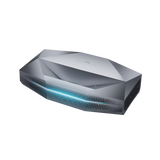
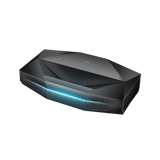
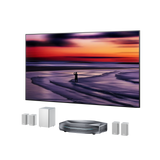
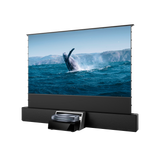
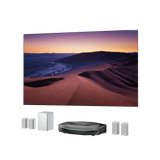
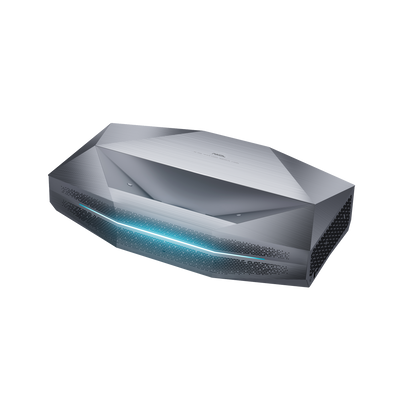
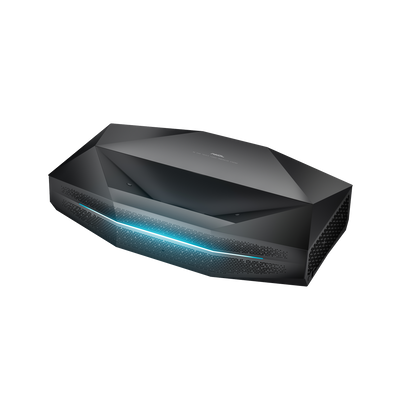
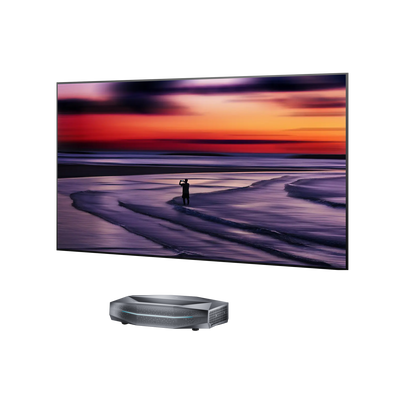
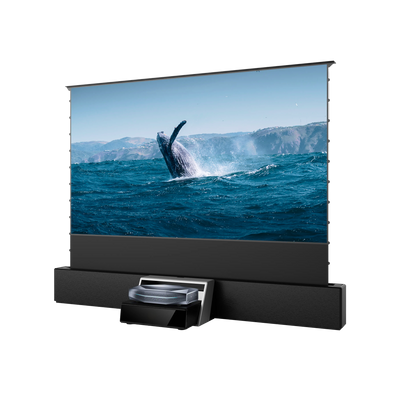
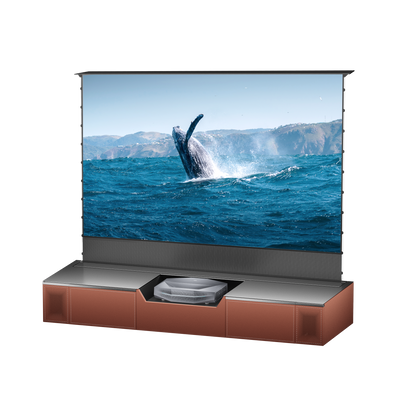
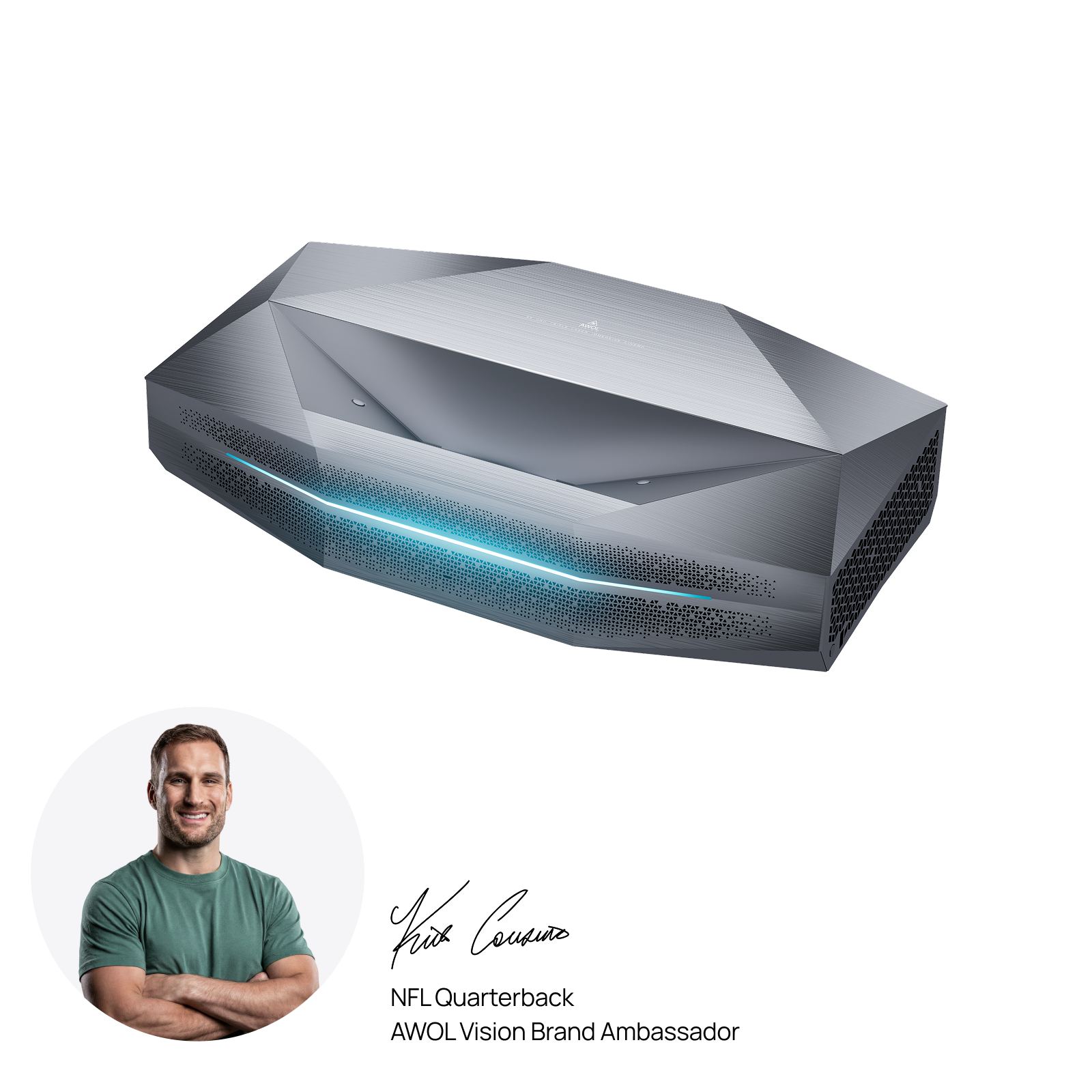
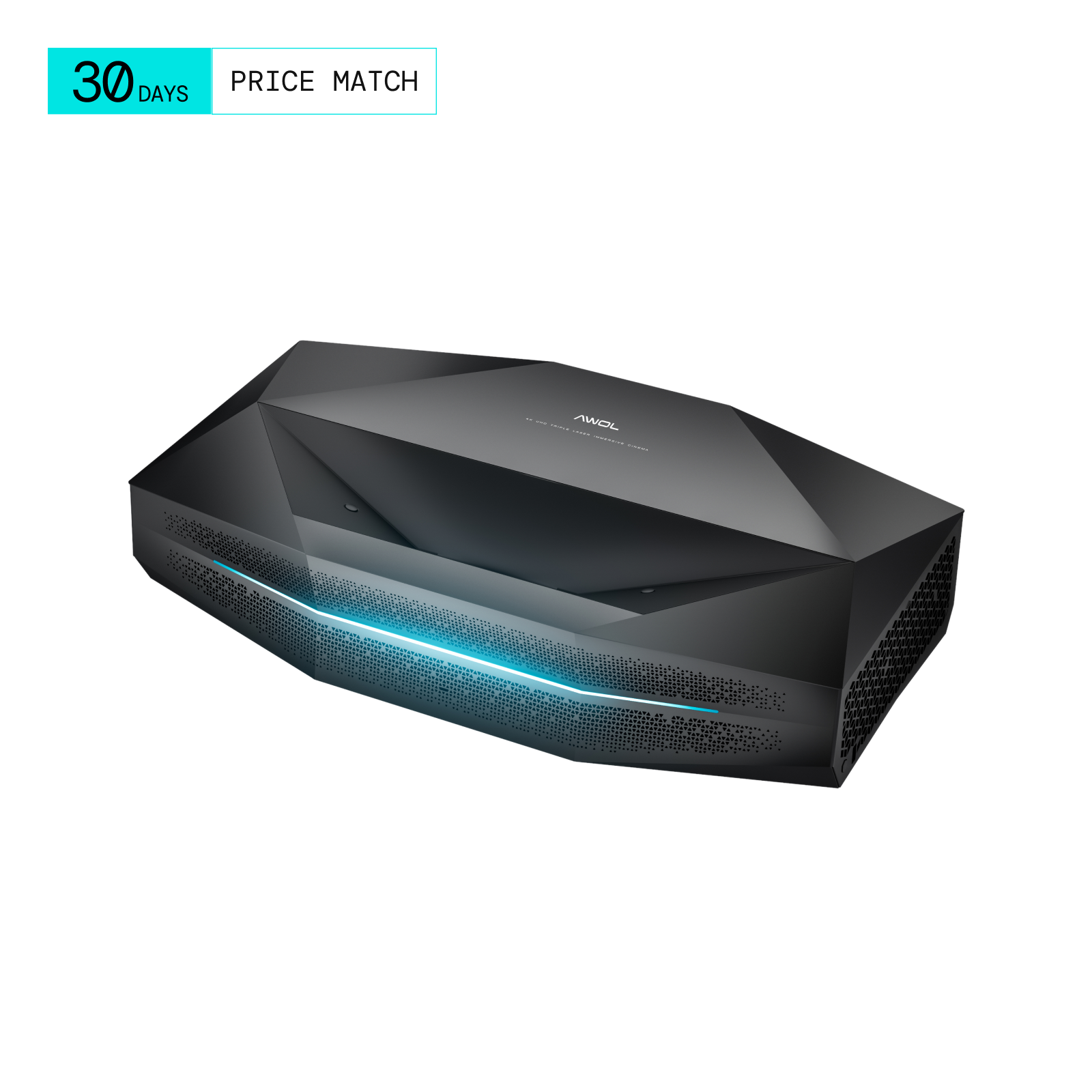
Some projectors support AirPlay directly, while others need an Apple TV connected through HDMI. AWOL Vision Aetherion Pro and Aetherion Max offer built-in AirPlay 2, along with Chromecast and Miracast for households using different devices.
For regular movie nights, wireless sharing is only part of the picture. Check whether the projector offers compatible streaming apps or supports an external media player, so you can watch your preferred services without relying on phone mirroring.
Picture Quality and Room Setup
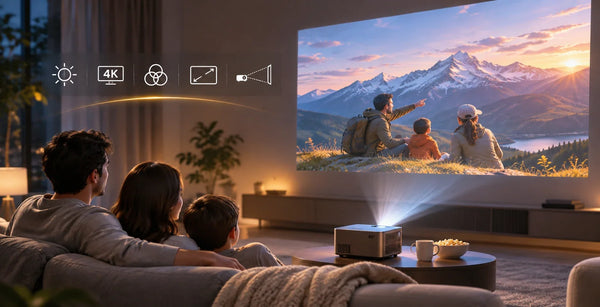
Think about a Saturday afternoon movie in a bright living room. Sunlight washing across the screen can weaken the picture, making brightness an important consideration. Contrast helps darker scenes retain depth, and accurate color keeps faces and landscapes convincing. If you watch compatible 4K material, resolution can also make fine details easier to see.
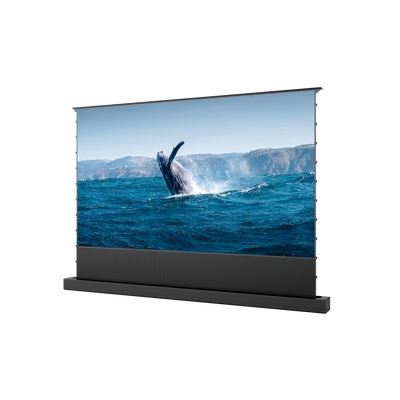
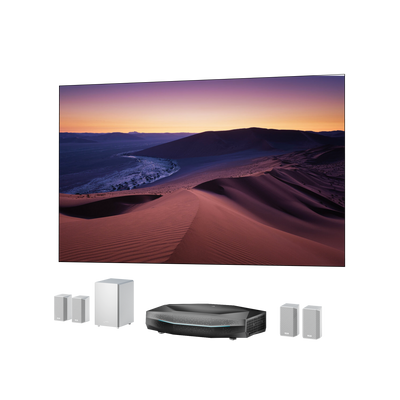
Measure the space between the projector and the screen before deciding on a model. A traditional long-throw unit may have to sit behind the seating area to fill the wall. An ultra-short-throw (UST) projector sits much closer to the screen, which can leave more room for furniture in a compact living space.
HDMI Connectivity and Audio Options
A living room setup often has more than one video source. Apple TV and a game console may each need an HDMI input; enough ports make switching easier. For cable specifications, see our guide to HDMI cables for projectors. If you're putting together a fixed home theater, consider the wiring and equipment placement before mounting everything in place.
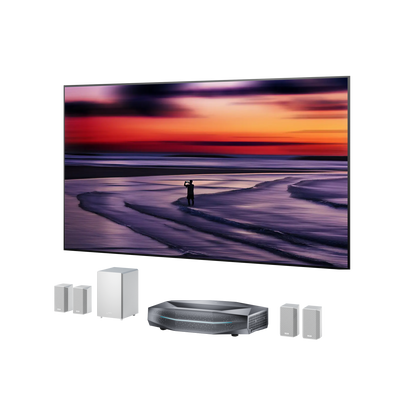
Sound is worth planning at the same time as the picture. The projector's speakers might suit a quick episode, but movies and live sports can benefit from a soundbar or surround system. Before buying another speaker, check which audio outputs the projector provides and whether they match your existing equipment.
Why Does AirPlay Not Work on Projectors?
Your projector appears in the AirPlay device list, and photos display normally, but a movie won't play. Or perhaps the projector doesn't appear on your iPhone at all. These symptoms point to different problems, so the right fix starts with identifying what's failing.
|
Problem |
What to Check |
|
Projector not showing up |
Confirm AirPlay is enabled and both devices can communicate over the network. Guest-network restrictions or AP isolation may prevent discovery. |
|
AirPlay lagging or disconnecting |
Check Wi-Fi signal strength and network congestion. A stable 5 GHz connection may help if supported, though AirPlay doesn't require this band. |
|
Video plays with a black screen |
Test photos or personal videos. If those work, the streaming app may be restricting playback through DRM or HDCP requirements. |
|
No sound or audio out of sync |
Check the selected audio output. If using Bluetooth speakers or an external sound system, compare playback through the projector's built-in speakers and check for available audio-sync settings. |
Updating and restarting both devices may resolve connection problems. VPNs and certain router settings can interfere with device discovery. If only protected videos fail, the issue may involve app restrictions. Try playing the content through a supported streaming app on a compatible media player instead.
Frequently Asked Questions
Can I connect my iPhone to a projector without Apple TV?
Yes. With an AirPlay-compatible projector, you can select the projector in your iPhone's Screen Mirroring menu or through the AirPlay button in a supported app. Apple TV isn't required. If your projector lacks AirPlay, a compatible HDMI adapter gives you a wired alternative.
Does AirPlay require Wi-Fi to work with a projector?
Usually, AirPlay works when the Apple device and receiver can communicate over Wi-Fi. A home router isn't always essential, though: certain Apple TV models allow peer-to-peer AirPlay between compatible devices. Native AirPlay projectors may not offer that option, so check the model's connection requirements before planning to use it without a router.
How do I AirPlay from a Mac to a projector?
On your Mac, open Control Center and select Screen Mirroring, then choose your AirPlay-compatible projector or connected Apple TV. Follow any pairing prompts to establish the connection. For presentations, check System Settings > Displays to see whether extending the display is supported, allowing you to keep notes on your Mac while presenting on the larger screen.
Be the First to Know
Subscribe for special deals, news, and important product information, and get your exclusive $100 discount.
Related Articles
What to Look for in a Projector: A Practical Buying Guide

How Much Does a Projector Cost? A Guide to Setting Your Budget

Best Projector Black Friday Deals 2026: Your Guide to Choosing & Saving Big on UST/Laser

What Is the Best Projector to Buy? Find the Right Fit for Your Home
Upgrade Your UST Setup: Is AWOL LuxVision Right for Your Room?