















How to Connect a Speaker to a Projector
You can connect a speaker to a projector in four main ways: HDMI eARC/ARC, optical (S/PDIF), a 3.5mm analog cable, or Bluetooth. The best choice depends on the ports available, whether your speakers are powered, and the audio formats you want to play. HDMI eARC is the strongest option for a soundbar or home theater receiver, while 3.5mm and Bluetooth are usually easier for basic speakers. Below, match your equipment to a method, follow the connection steps, and then use the troubleshooting checklist if the picture works but the sound does not.
Which Connection Method Fits Your Setup?
| Method | Best for | Cable needed |
|---|---|---|
| HDMI eARC / ARC | Soundbars and AV receivers; highest format support | Certified HDMI cable |
| Optical (S/PDIF) | Soundbars or receivers without eARC | Toslink optical cable |
| 3.5mm analog | Powered stereo speakers or older audio gear | 3.5mm-to-RCA or 3.5mm cable |
| Bluetooth | Wireless convenience for casual viewing | None |
Check the labels beside the projector’s outputs and the speaker’s inputs before choosing. Passive speakers require an amplifier or AV receiver; powered speakers can accept an audio signal directly.
Method 1 — HDMI eARC/ARC (Best for Soundbars & AV Receivers)
HDMI Audio Return Channel sends sound from the projector back to a compatible soundbar or receiver over one cable. eARC offers more bandwidth and broader support for lossless formats than ARC; see this eARC vs. ARC comparison if you are deciding which standard your system needs.

- 1. Use a certified Ultra High Speed HDMI cable.
- 2. Connect the projector’s eARC/ARC-labeled HDMI port to the matching eARC/ARC port on the soundbar or receiver.
- 3. Enable HDMI Control, also called CEC, on both devices.
- 4. Open the projector’s audio settings and select HDMI (eARC) or HDMI ARC as the output.
- 5. If the speaker supports eARC, enable eARC or use the projector’s Enhanced HDMI mode. For ARC-only equipment, use Standard mode.
- 6. Set digital audio output to Passthrough when the sound system can decode the original track. If it cannot, try Auto or PCM.
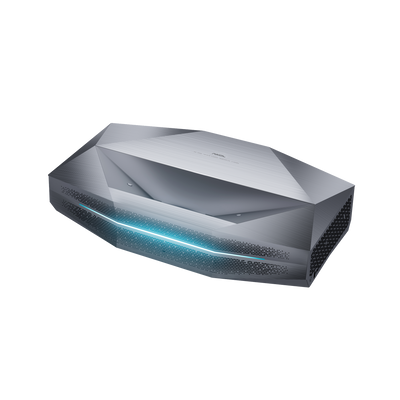
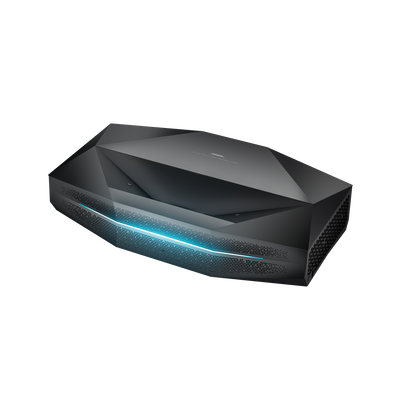
For runs longer than about 16 feet (5 meters), use a certified active or fiber-optic HDMI cable rated for the required signal. This projector HDMI cable guide explains what to check for longer 4K installations. On AWOL Vision Aetherion Max and Pro projectors, the relevant controls are under Settings → Display & Sound → Audio Output, with HDMI format and CEC controls in the input settings.
Method 2 — Optical (S/PDIF/Toslink)
Optical is a reliable digital fallback when the projector and speaker both have Toslink ports but do not share eARC. It supports stereo PCM and commonly compressed 5.1 formats such as Dolby Digital, but it does not carry the same high-bandwidth lossless formats as eARC. If the format names are unfamiliar, this guide to Dolby Audio explains the practical differences.

- 1. Remove the protective caps, then connect a Toslink cable from the projector’s S/PDIF or Optical Out port to the speaker’s Optical In port.
- 2. In the projector’s audio menu, choose Optical (S/PDIF) as the output.
- 3. Set the digital audio format to one the speaker supports. On Aetherion Max and Pro, AWOL Vision recommends Dolby Digital for this connection.
- 4. Select the optical input on the soundbar or receiver, then play a known working source to test it.
Avoid sharp bends or forcing the optical connector. If there is no sound, test PCM; if PCM works, the original surround format is unsupported.
Method 3 — 3.5mm Analog (Simple & Universal)
If the projector has a headphone or audio-out jack, a 3.5mm connection is the simplest option for powered stereo speakers, a portable speaker with AUX input, or an amplifier. It carries two-channel analog audio only, so it is not the right route for surround formats.

- 1. Connect a 3.5mm-to-3.5mm cable, or a 3.5mm-to-RCA cable, from the projector’s headphone/audio-out port to the powered speaker or amplifier input.
- 2. Open the audio menu and select Wired Headphone, Headphone, Line Out, or External, depending on the projector.
- 3. Set the speaker to AUX or Line In.
- 4. Start at a moderate volume, then raise the level on the speaker and projector gradually to avoid distortion.
If you hear hum, test a shorter shielded cable and keep it away from power cords and adapters.
Method 4 — Bluetooth (Wireless Convenience)
Bluetooth removes the cable, but the projector must support Bluetooth audio output—not just Bluetooth input for a remote control. It is convenient for casual viewing and temporary setups, although compression and buffering can introduce lip-sync delay.

- 1. Put the Bluetooth speaker in pairing mode and keep it close to the projector during setup.
- 2. Open the projector’s Bluetooth or Connected Devices menu and choose Add device.
- 3. Select the speaker from the list and confirm pairing.
- 4. If pairing succeeds but sound stays on the projector, return to Audio Output and select the Bluetooth device.
Move the speaker away from routers and other 2.4GHz devices if audio drops. If lip-sync remains noticeable, switch to a wired connection.
Connected but No Sound? Quick Fixes
- ● Check volume, mute, and the selected input on the projector, speaker, and source device.
- ● Confirm that the projector’s audio output matches the connection: HDMI eARC, Optical, Wired Headphone, or Bluetooth.
- ● Check the source device. A laptop or console may still be sending sound to its own speakers or another HDMI device.
- ● For ARC/eARC, use the labeled ports and enable CEC on both devices.
- ● Try PCM when a speaker cannot decode the selected Dolby, DTS, or passthrough format.
- ● Reseat the cable, test a known-good replacement, and power-cycle the complete chain.
FAQs
Can you connect speakers to a projector that has no audio-out port?
Yes. Route audio from the source device to the speaker, or place an HDMI audio extractor between the source and projector. The extractor must support the video resolution, refresh rate, HDR format, and HDCP version your setup uses.
Is a Bluetooth speaker good enough for movies?
It works for casual viewing, but Bluetooth buffering can delay voices. For consistent movie or gaming sync, use HDMI eARC or optical.
Do I need a special HDMI cable for eARC?
No. However, a certified Ultra High Speed HDMI cable is the safest choice for modern 4K/120Hz equipment. Use an appropriately rated active or fiber-optic cable for long runs.
Why is there no sound over HDMI?
Select HDMI eARC as the projector output, choose the correct speaker input, and enable CEC. If the speaker cannot decode the current format, try PCM.
Final Thoughts
Match a projector output to an input on the audio system. Use HDMI eARC for the widest format support, optical for dependable digital audio, 3.5mm for powered stereo speakers, or Bluetooth for cable-free convenience. If sound is missing, check the output, input, format, and source device in that order.
Be the First to Know
Subscribe for special deals, news, and important product information, and get your exclusive $100 discount.
Related Articles

7 Basement Home Theater Ideas with a Style of Their Own

Projector Screen Paint: Is It Worth Painting Your Wall?
A Projector in an Apartment: Make Room for the Screen, Not a Theater
Small Man Cave Ideas: 10 Activity-Based Setups for Limited Space
Frame TV Alternative: A Smarter Vision for the Living Room